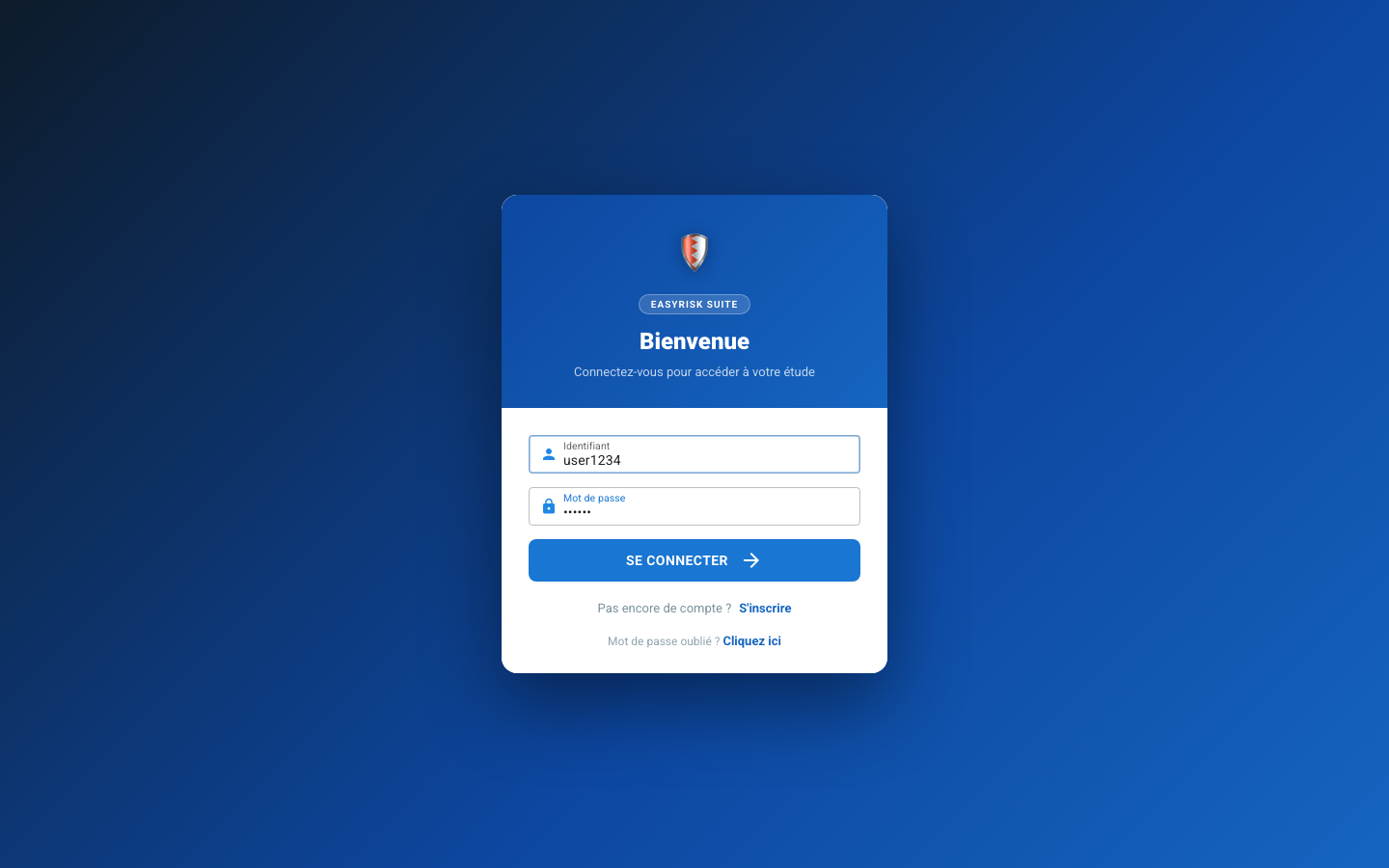
1Sign in to the application
Open app.polyodos.com (or app.polyodos.com) in your browser. Enter your username and password, then click Sign in.
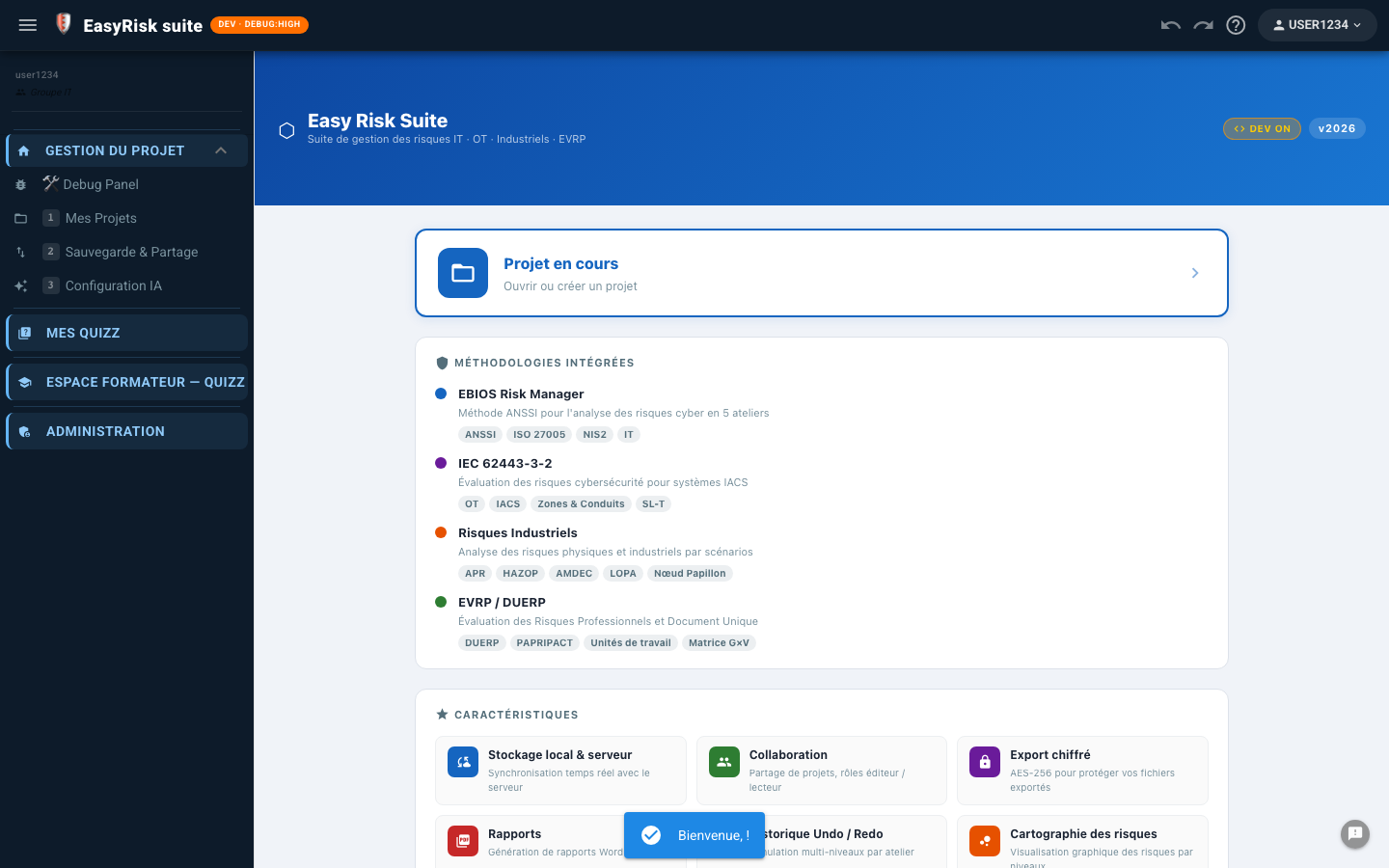
2Create an EBIOS RM project
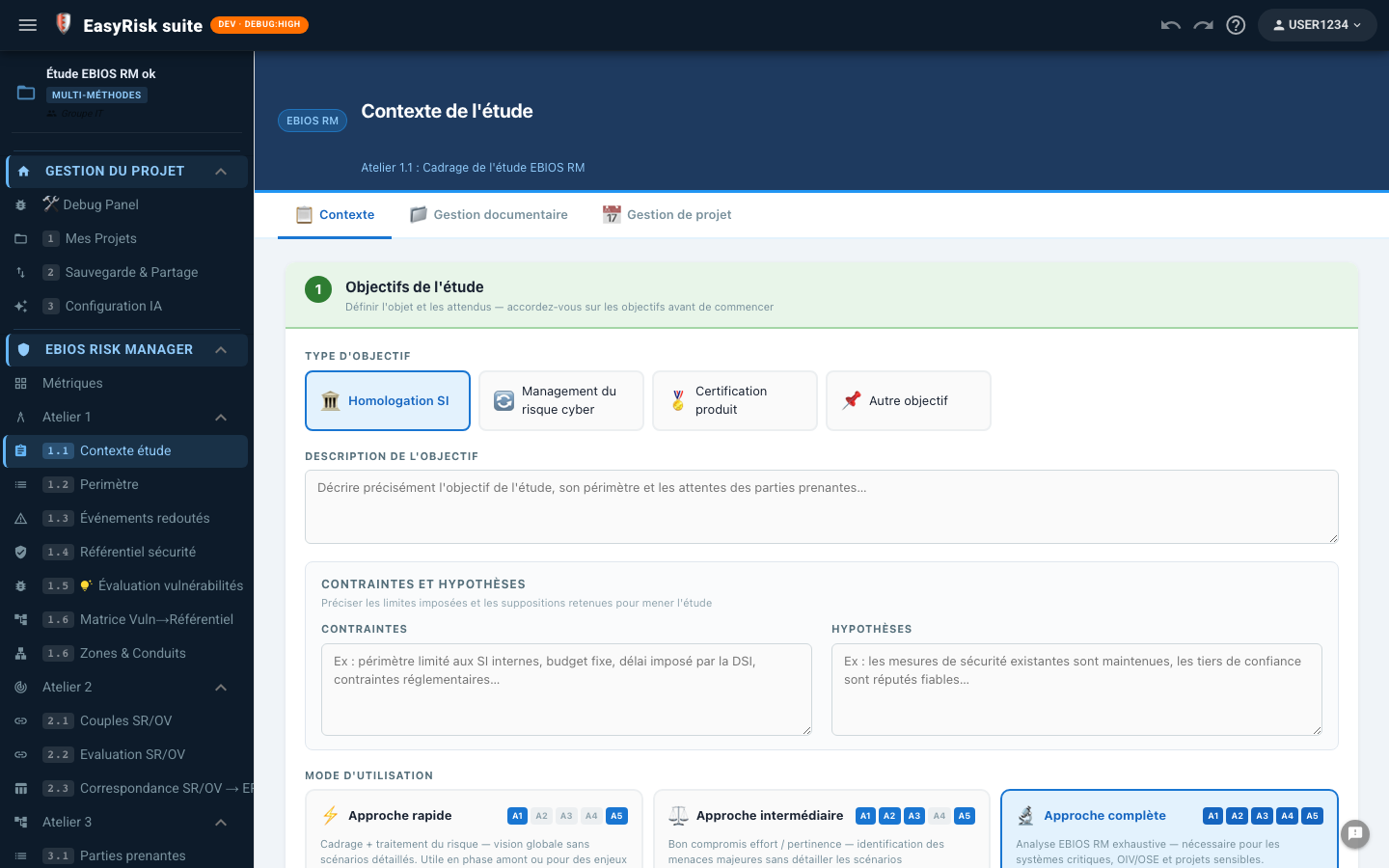
From the home page, click New project. In the dialog, enter a name and choose the project type that matches your context:
| Project type | Use |
|---|---|
| IT Cybersecurity | Conventional IS: ERP, email, web portal, and HR data |
| OT Cybersecurity | Industrial systems: SCADA, PLCs, and IIoT sensors |
| Multi-modules | Combines EBIOS RM with other methods (IEC 62443 and Industrial Risk) |
3Configure the AI assistant
The API key is stored only in your browser —it is never sent to Polyodos servers.
Open configuration
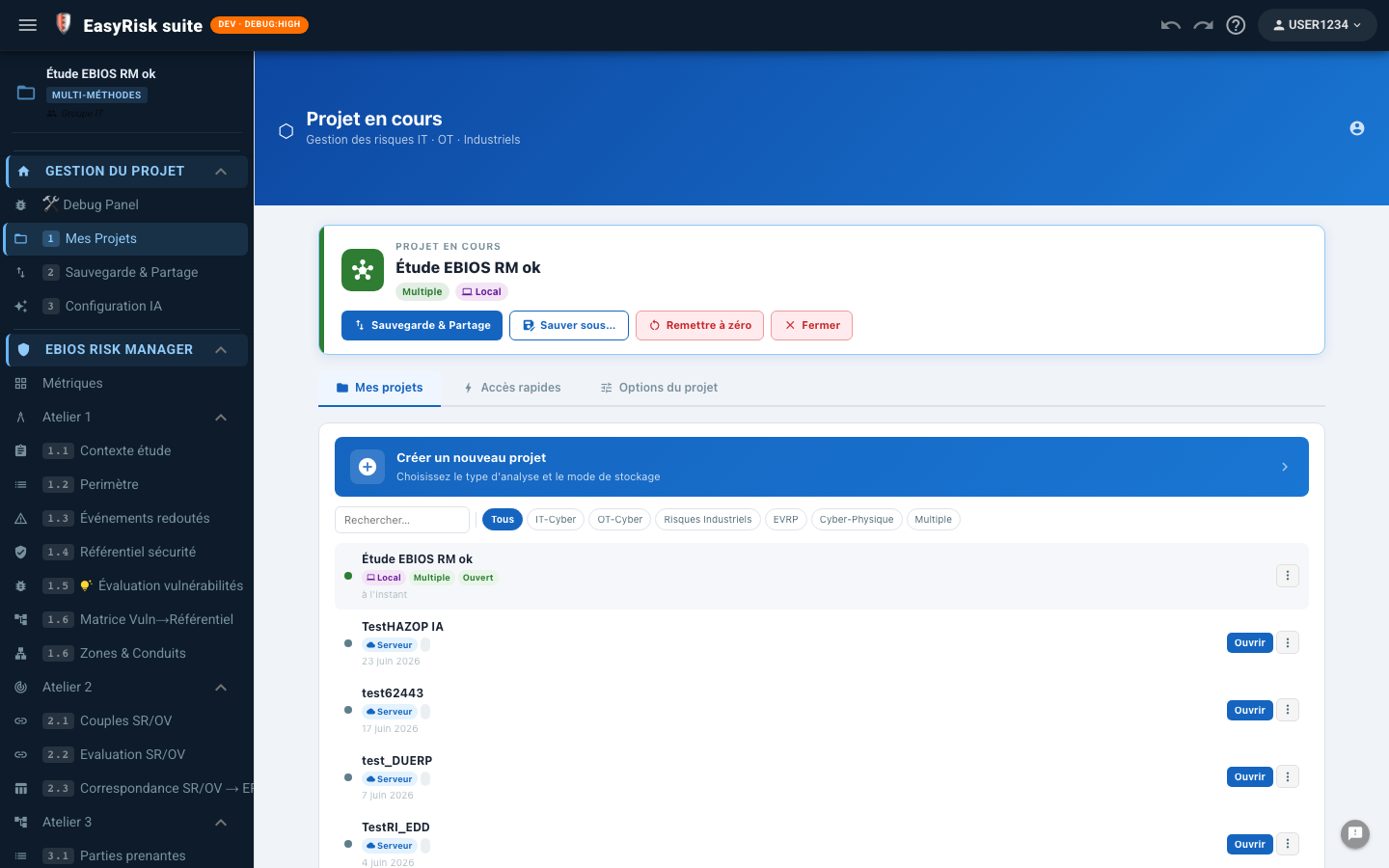
In the side navigation menu, click AI Configuration page (under Project Management).
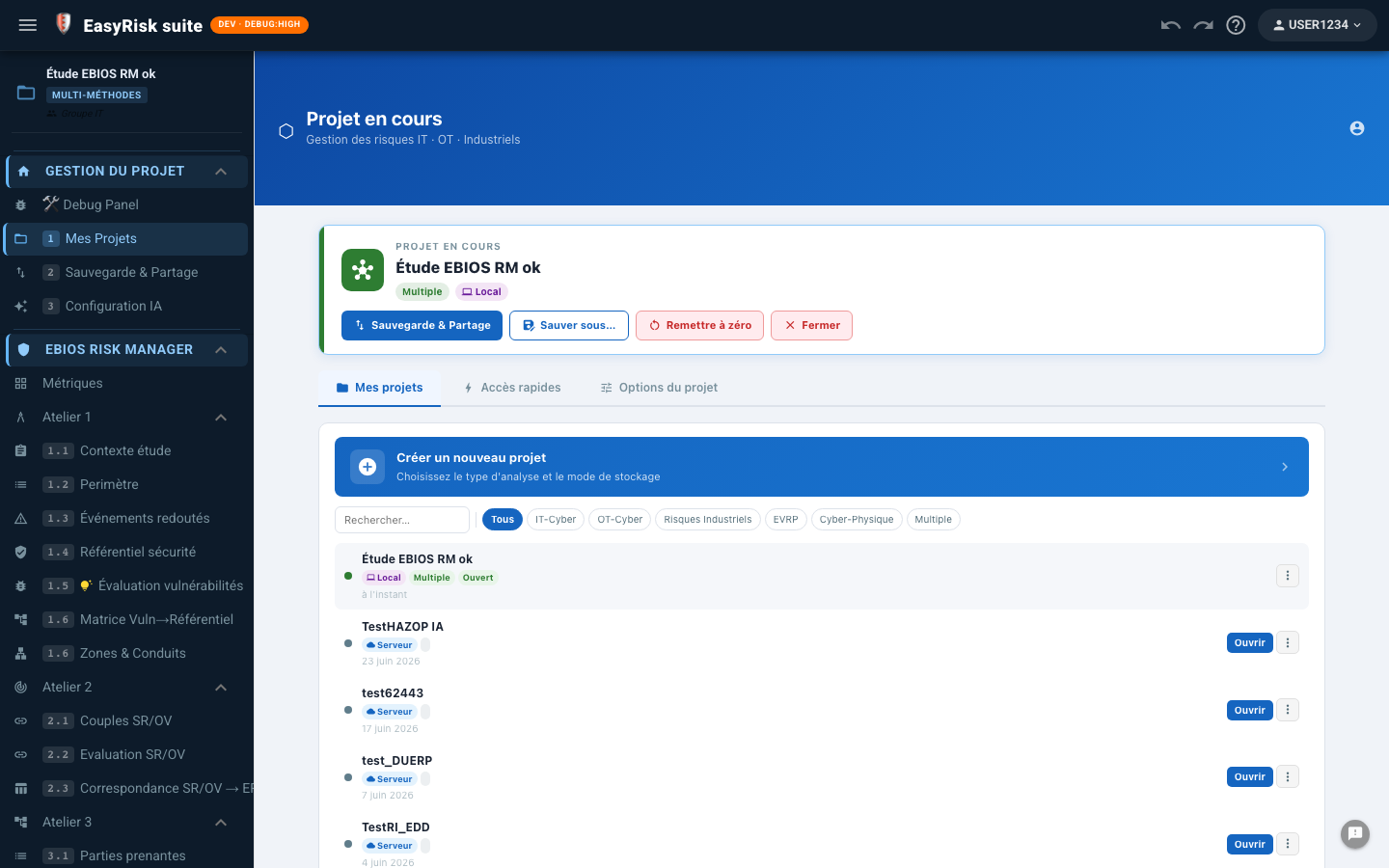
Choose a provider
| Provider | Benefits | Images |
|---|---|---|
| Gemini (Google) —recommended | Free, generous quota, fast | ✓ Yes |
| Claude (Anthropic) | Excellent reasoning and nuanced context analysis | ✓ Yes |
| Mistral AI | European models, GDPR | Depends on model |
| Groq | Very fast, free quota | Depends on model |
| Ollama (local) | 100% local, no outbound data | Depends on model |
| HuggingFace (experimental) | Wide selection of open models | — |
| OpenRouter (experimental) | Gateway to many third-party models | Depends on model |
| ⚙ Custom (experimental) | Custom URL and model for an internal OpenAI-compatible service | Depends on model |
Each provider offers several models; only some accept images (see the Images column above).
Get a Gemini key
- Open aistudio.google.com and sign in with your Google account
- Click Get API key → Create API key
- Copy the generated key (it starts with
AIzaSy…) - Paste it into the API key field in Polyodos—saving is automatic
4Open AI Scoping
From your open EBIOS RM project, click ✦ AI Scoping in the side menu under EBIOS RM.
The page first displays the User Guide with the AI roadmap. Click ✦ Scoping worksheet to open the workspace.
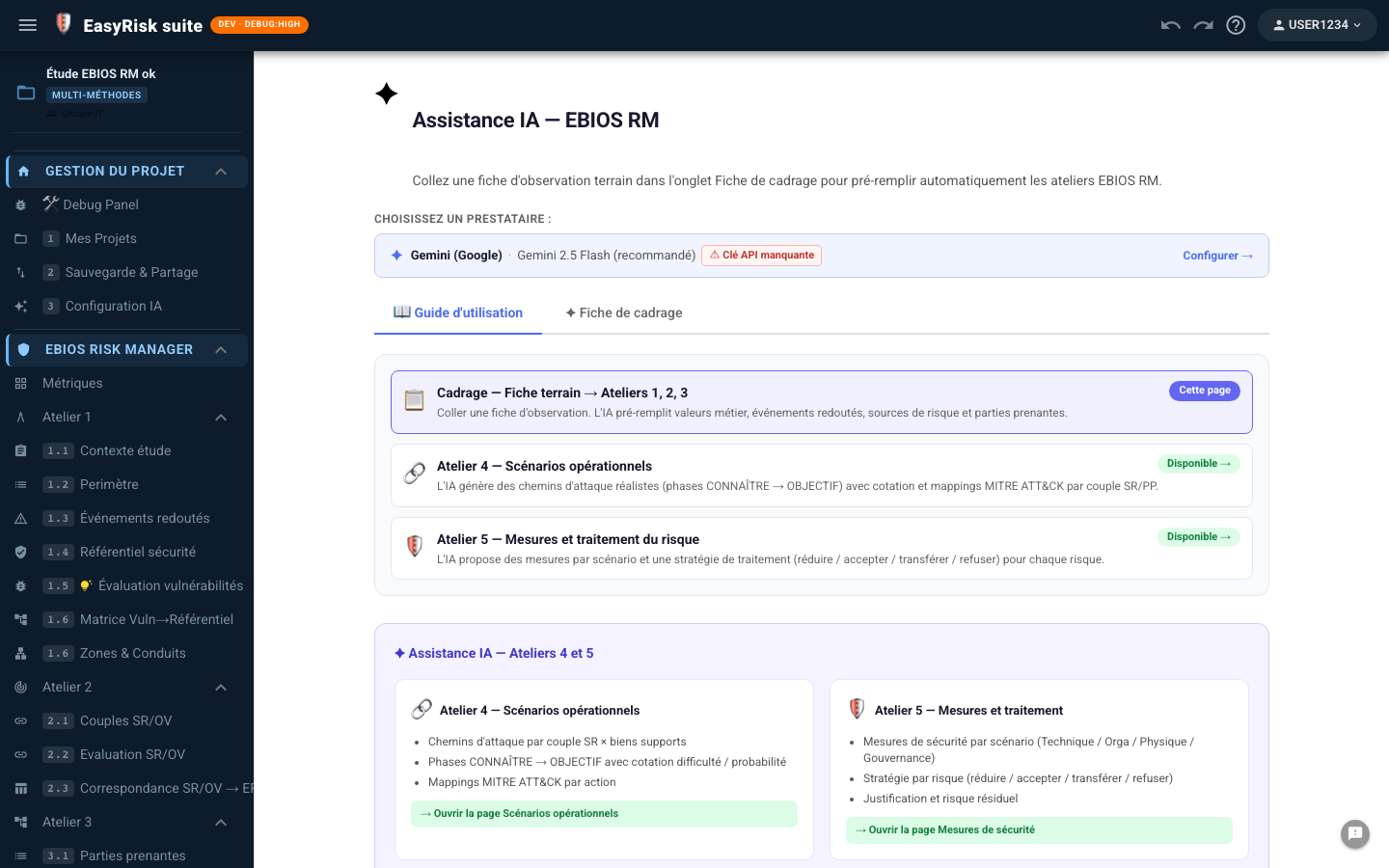
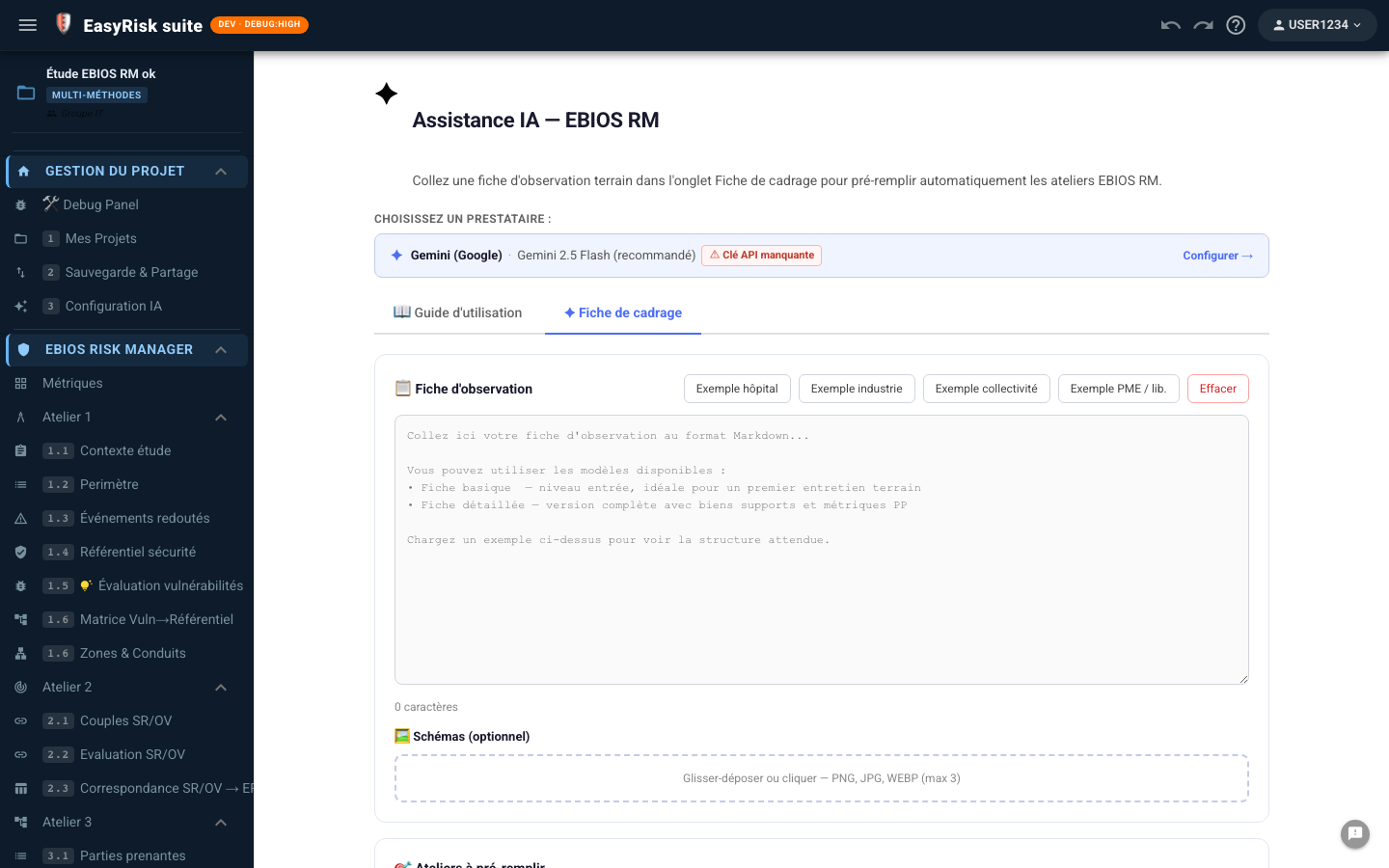
AI roadmap—the three modules
5Complete the scoping worksheet
Use an example or write your own worksheet
Four buttons provide pre-filled example worksheets:
| Example | Secteur | Characteristics |
|---|---|---|
| Hospital | Public healthcare | SIH, PACS, DPI, obligations HDS + NIS2, contexte CHU post-ransomware |
| Industrie | Chimie (SEVESO) | SCADA/OT, automates Siemens, interface IT/OT, IEC 62443 |
| Local authority | Local government | Shared IS, Microsoft 365, IT-budget constraints, and NIS2 |
| PME / lib. | SME or professional practice | Lean organisation, cloud-first, GDPR, and limited security resources |
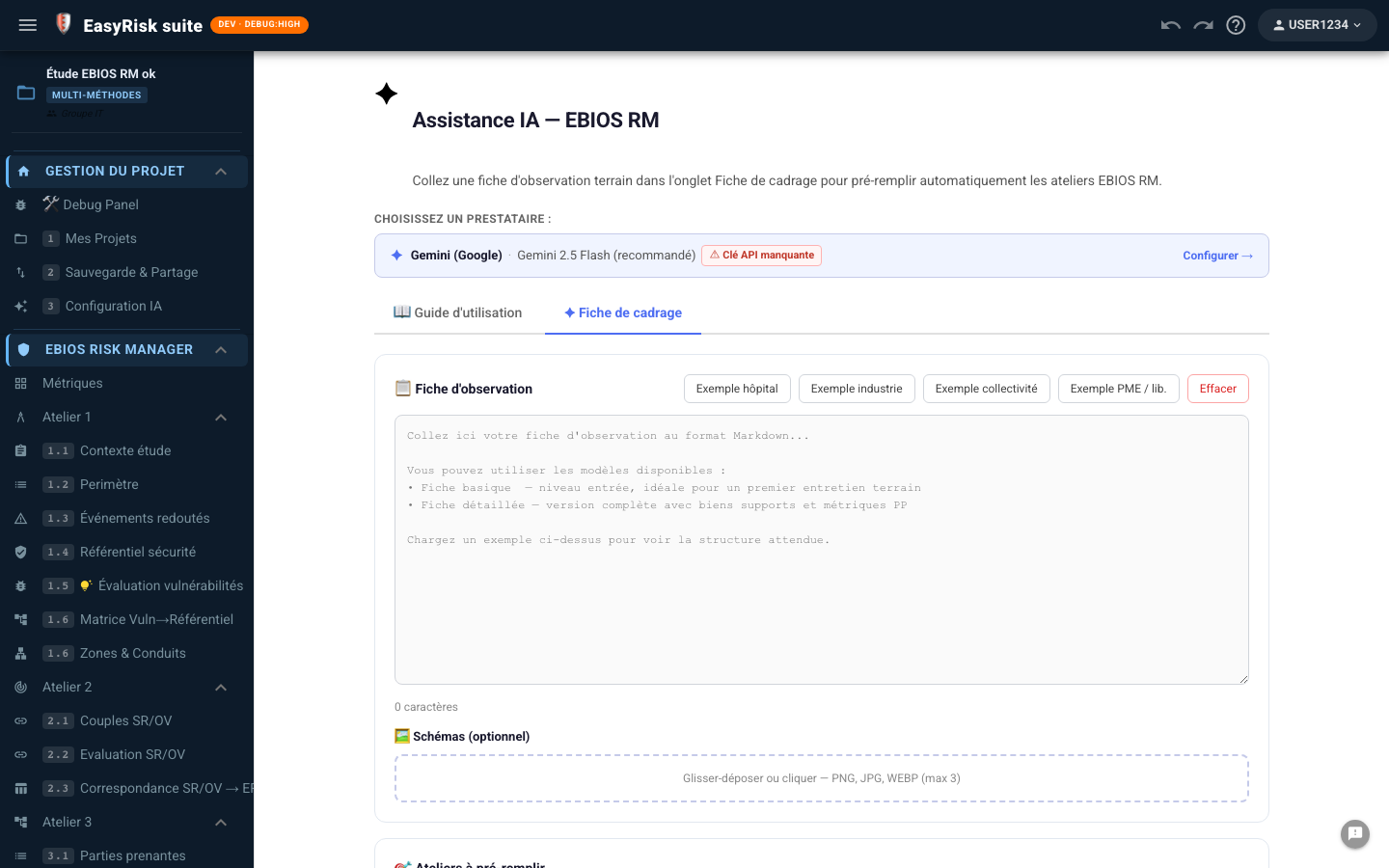
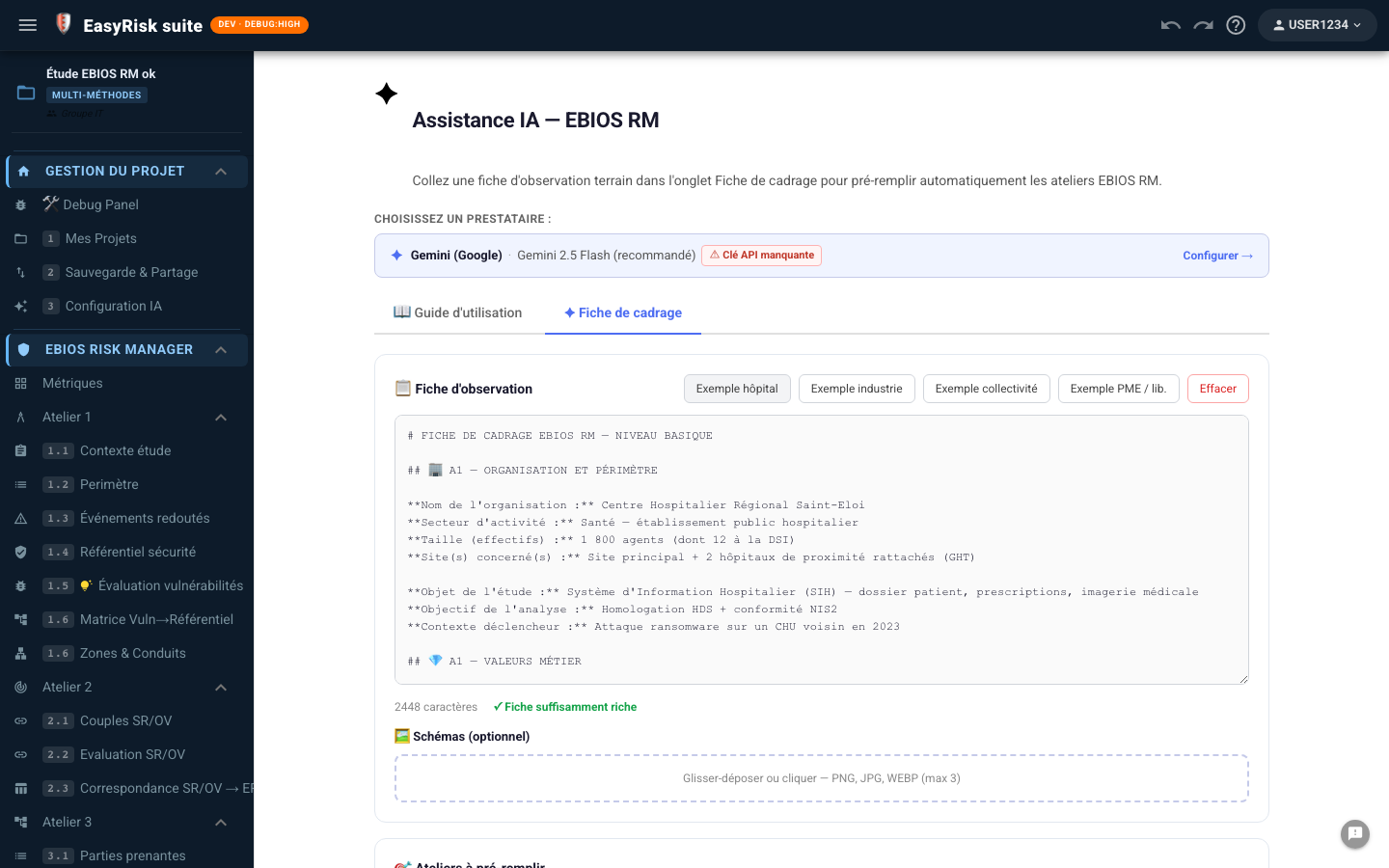
Expected worksheet structure
The worksheet follows the Markdown format for EBIOS RM Workshops 1, 2, and 3. Essential sections are:
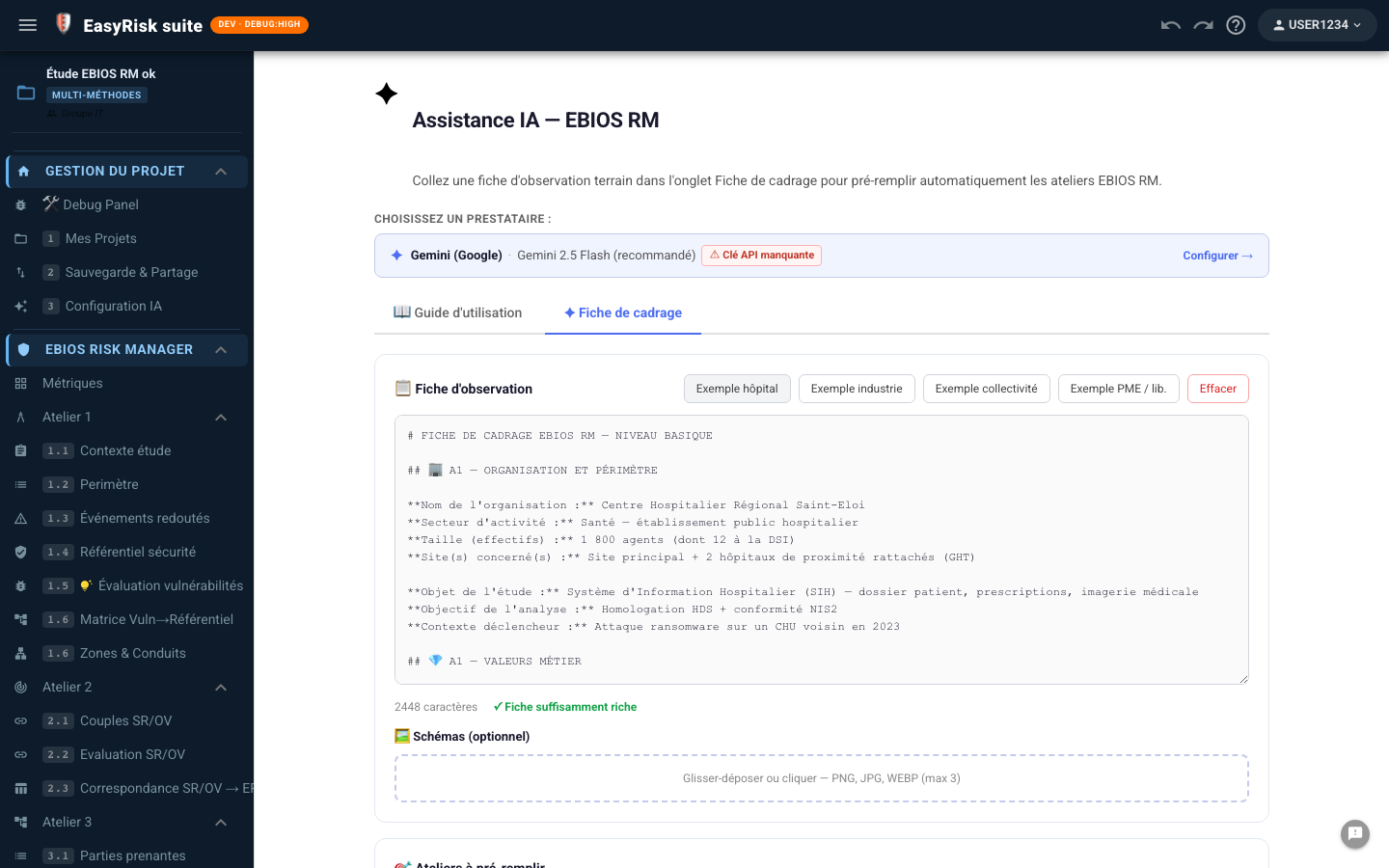
Add diagrams (optional)
Drag network-architecture or topology screenshots into the Diagrams. The AI analyses them alongside the text. Accepted formats: PNG, JPG, and WebP, up to three images. Available with Gemini, Claude, and other engines whose selected model accepts images (see the table above).
6Select workshops to pre-fill
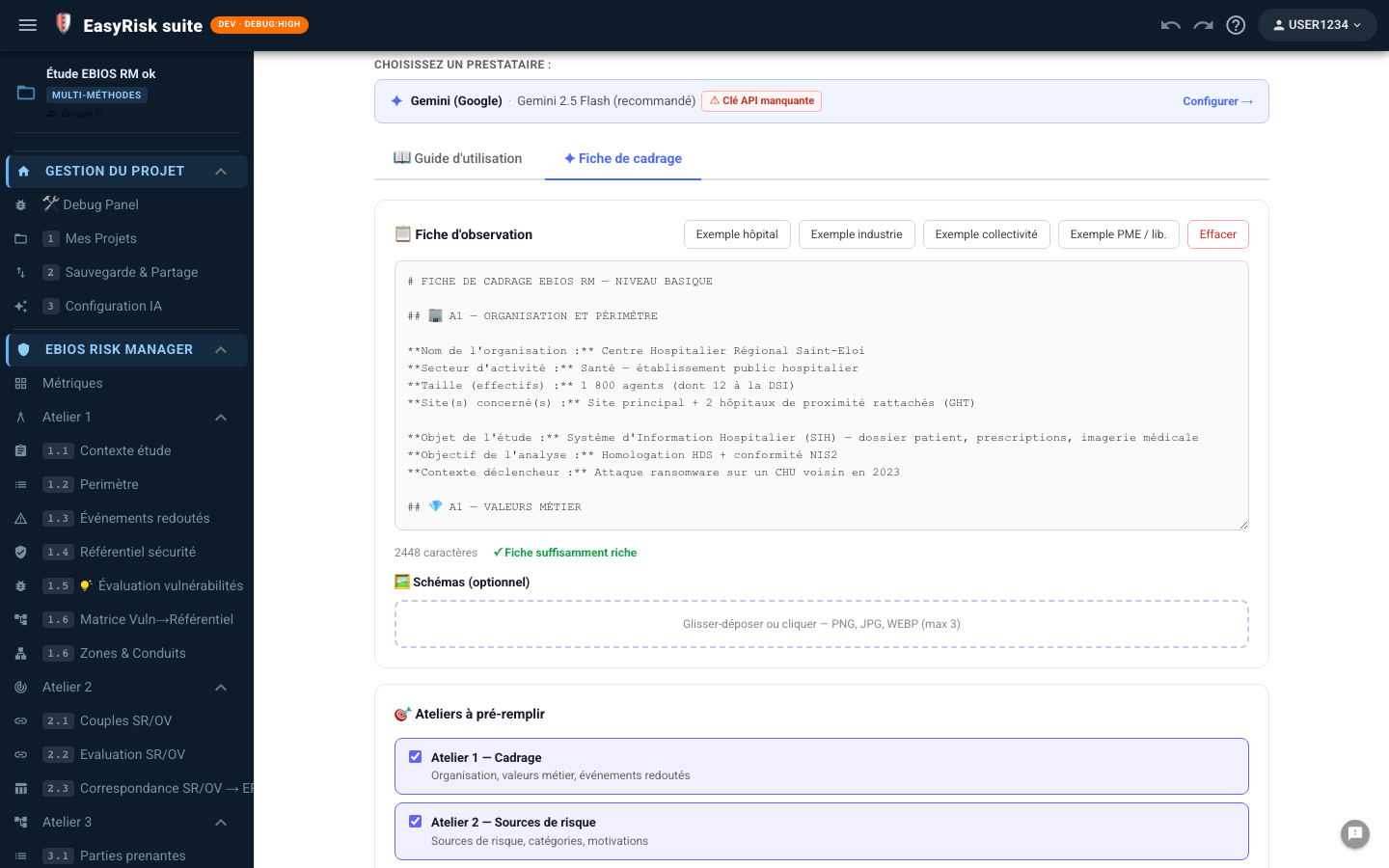
Three workshops can be pre-filled from the same worksheet. Select those you want to initialise:
7Lancer l'analyse IA
Once the worksheet is complete (green indicator) and the API key is configured, the ✦ Analyse worksheet and pre-fill workshops button becomes active at the bottom of the page.
Click it. A confirmation dialog lists the workshops that will be overwritten:
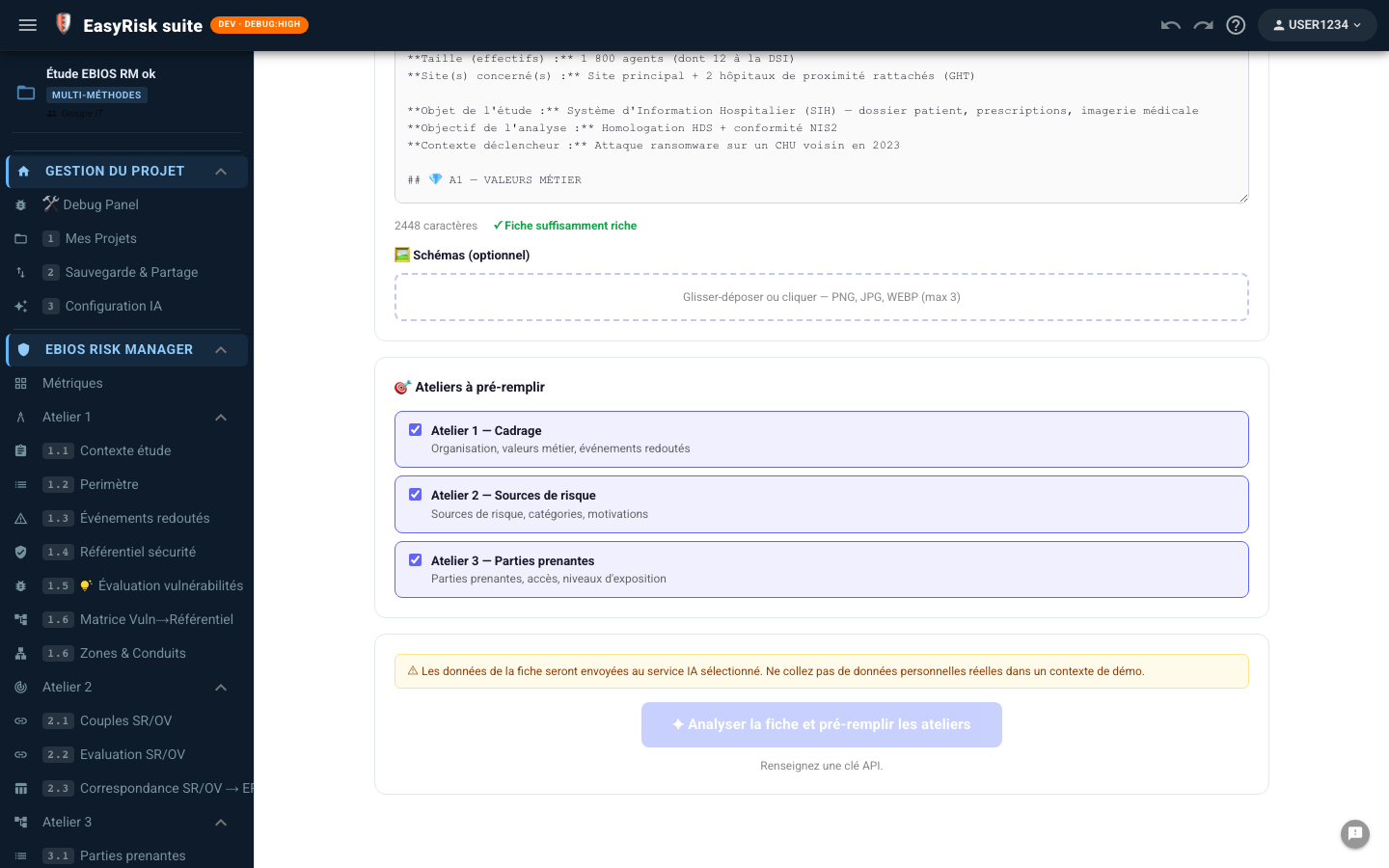
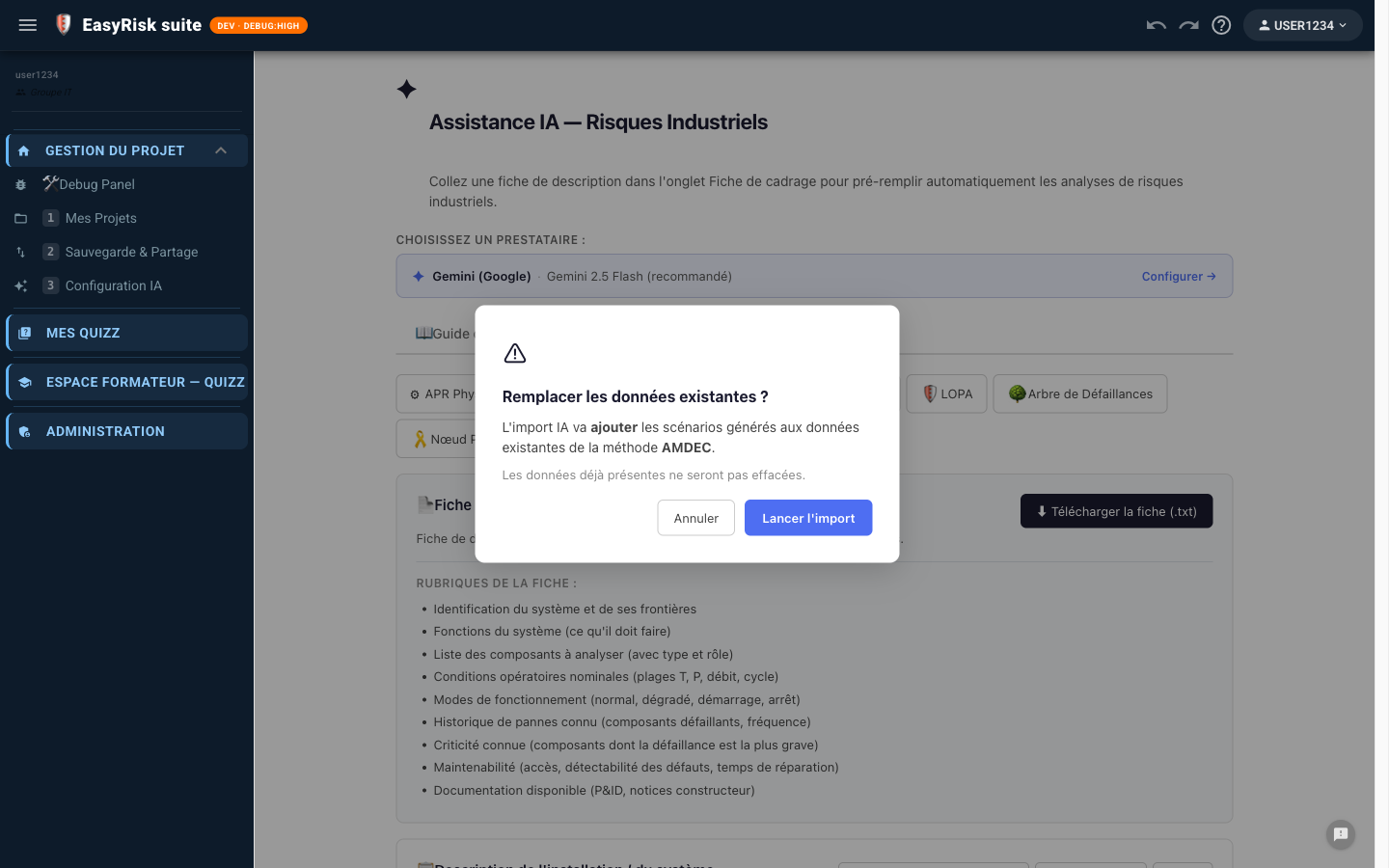
Click Clear and import to start. Generation typically takes 15 to 45 seconds depending on the AI provider and worksheet detail.
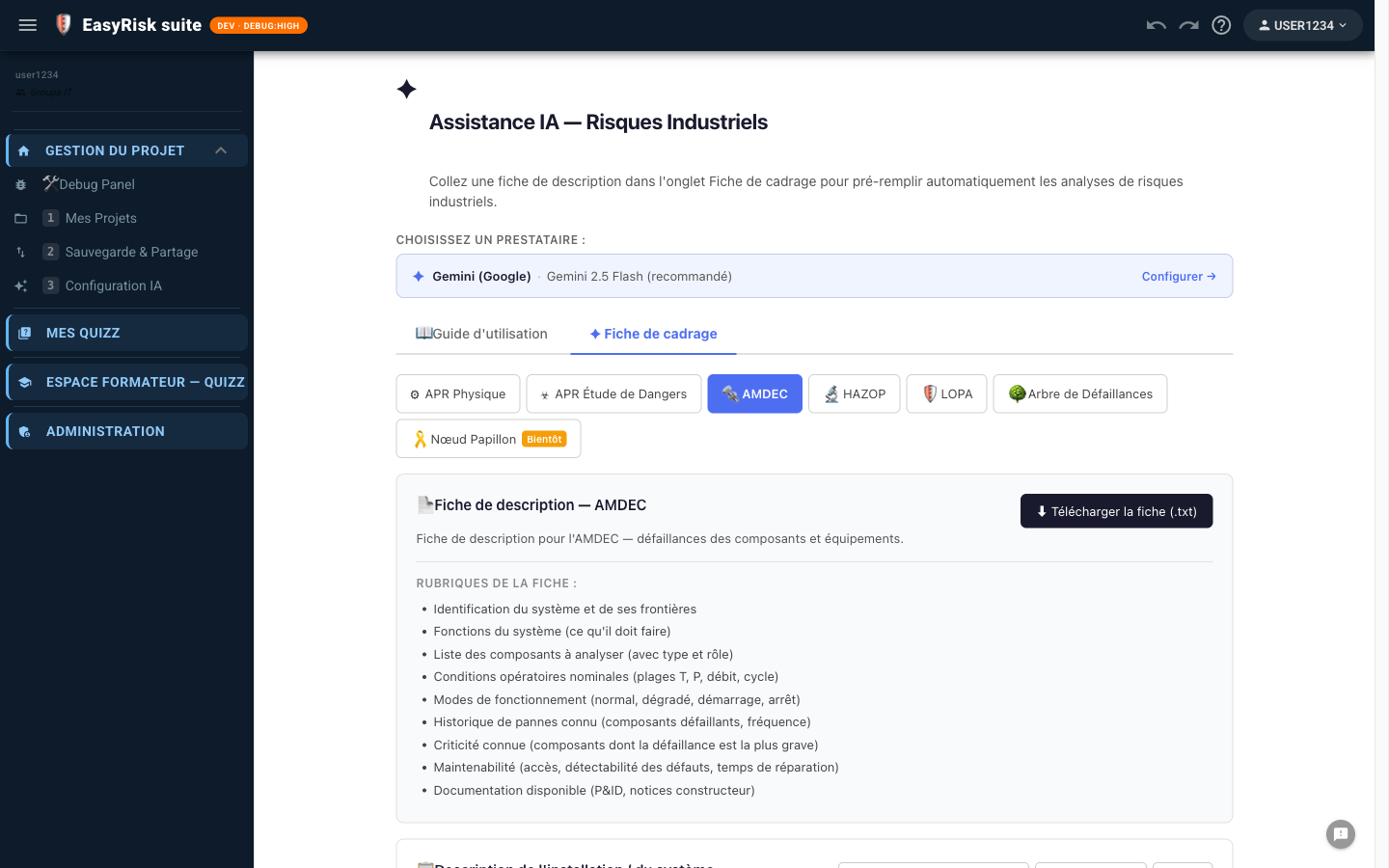
8Results and import
A green card confirms the import with workshop details: numbers of business values, feared events, risk sources, and stakeholders created.
If an error occurs
A red card displays the error message. Common causes:
| Message | Solution |
|---|---|
| Enter an API key | Open AI Configuration and enter the key |
| high demand / overloaded | Gemini overloaded—try again in 30 seconds |
| API key not valid | Incorrect or expired key—check Google AI Studio |
| No valid JSON | Description too short—add detail (minimum 500 characters) |
9Complete the generated analysis
AI-generated data provides starting points to validate and expand with the project team and business stakeholders.
Checks after import
- Check the business values —the AI may not identify every critical value specific to your organisation
- Adjust the severity of feared events using your internal criteria (EBIOS scale 1–4)
- Complete the risk sources with actors known in your sector or geopolitical context
- Check the stakeholders and their actual exposure levels—the AI may underestimate critical third parties
- Remove generic or irrelevant elements from your scope
10Workshops 4 and 5 — Advanced AI assistance
Beyond scoping, the AI assistant supports the most complex EBIOS RM workshops:
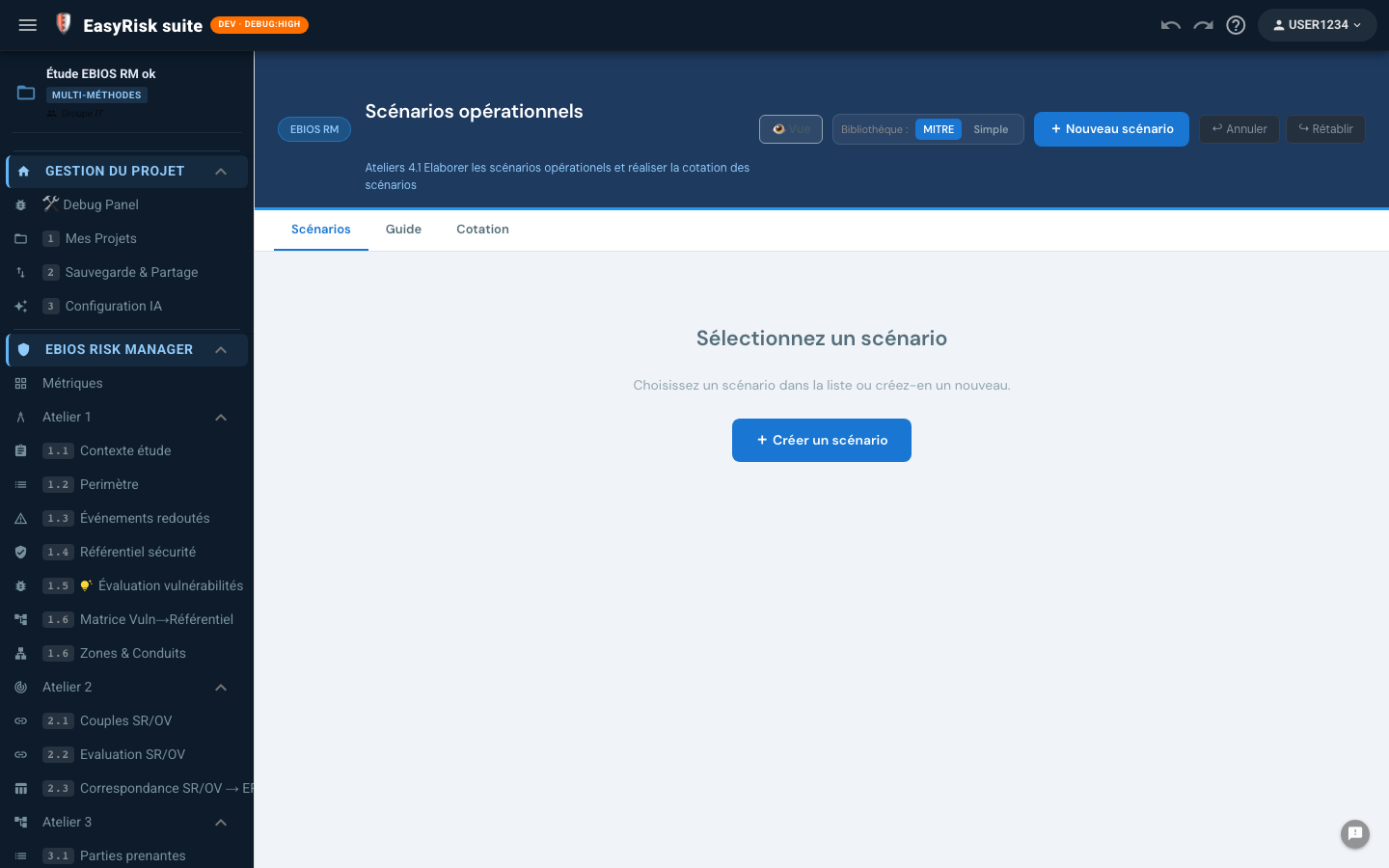
Workshop 4—Operational scenarios
Accessible depuis ✦ Chemins d'attaque from the menu. For each Risk Source / Stakeholder pair identified in Workshop 3, the AI generates:
- Attack paths structured into phases (KNOW → ACCESS → OBTAIN → PERSIST → OBJECTIVE)
- A likelihood and severity rating for each path
- MITRE ATT&CK mappings for every technique used
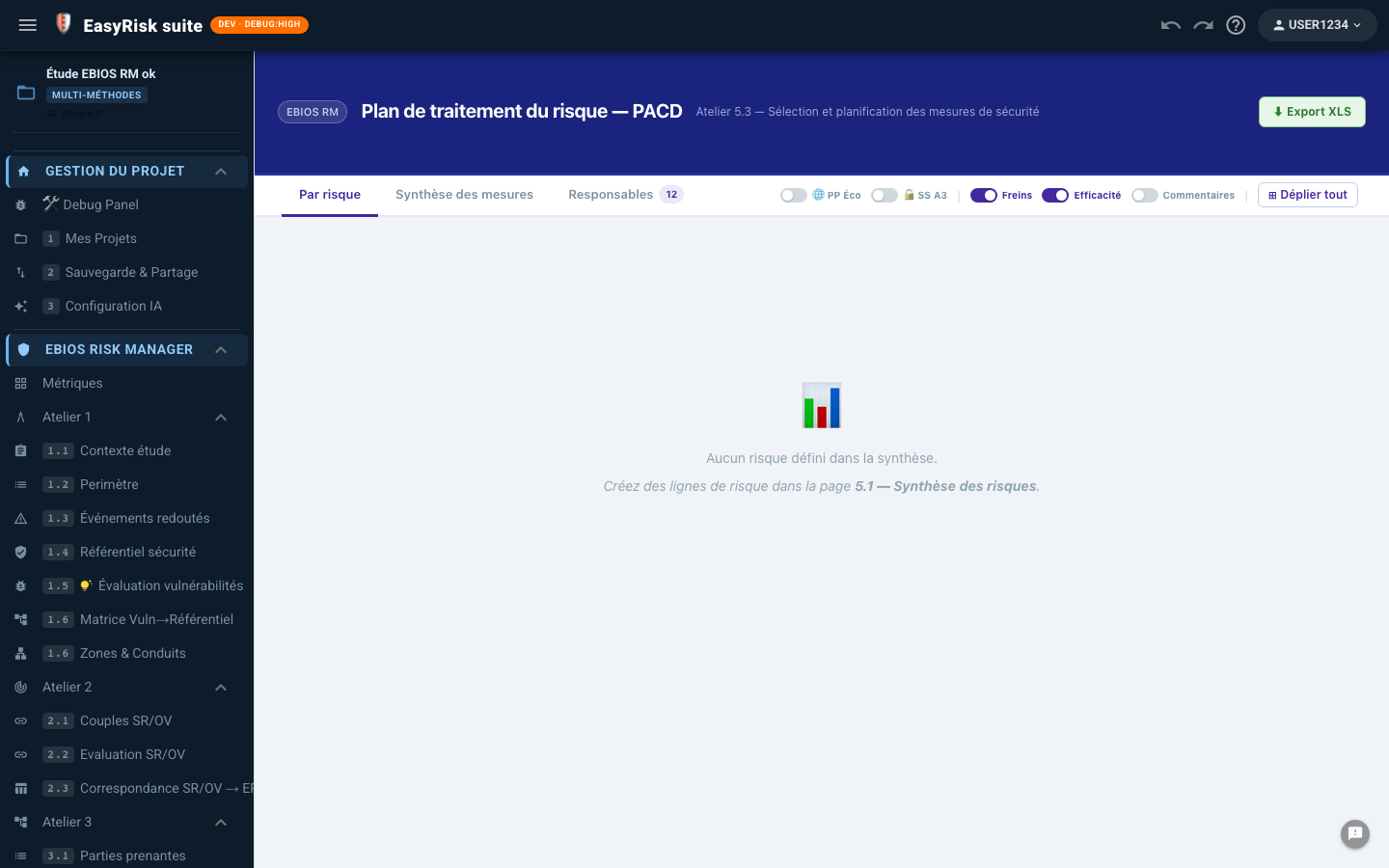
Workshop 5—Measures and risk treatment
Accessible depuis ✦ PACD / Traitement. For every selected operational scenario, the AI proposes:
- Concrete security measures (technical, organisational, and legal)
- A treatment strategy: reduce, accept, transfer, or avoid
- An estimate of implementation effort and impact on residual risk