✦What the AI assistant does
In the Industrial Risk module, the AI assistant supports several stages of analysis:
1Sign in to the application
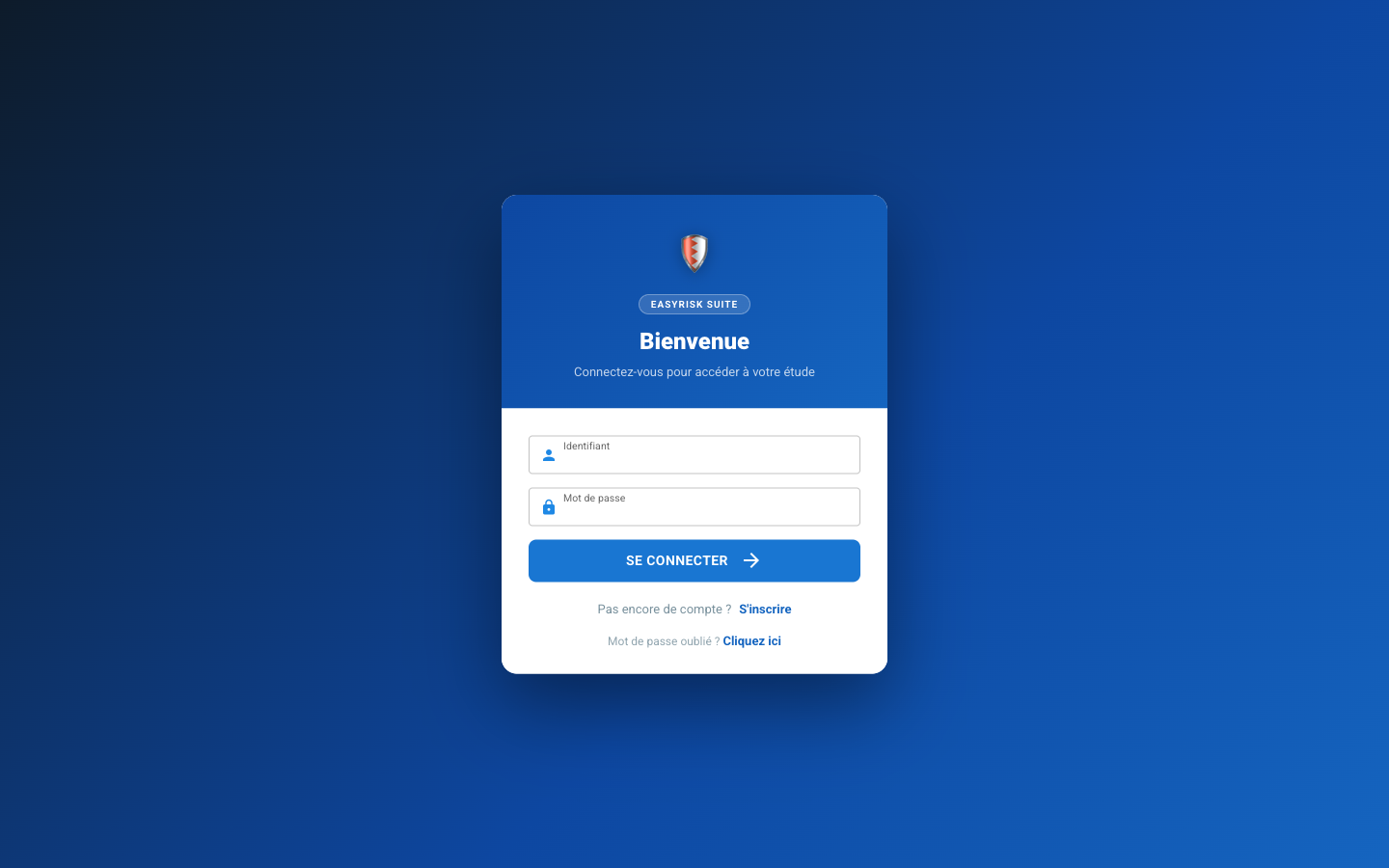
Open app.polyodos.com or app.polyodos.com depending on your plan, in your browser. Enter your username and password, then click Sign in.
2Create an Industrial Risk project
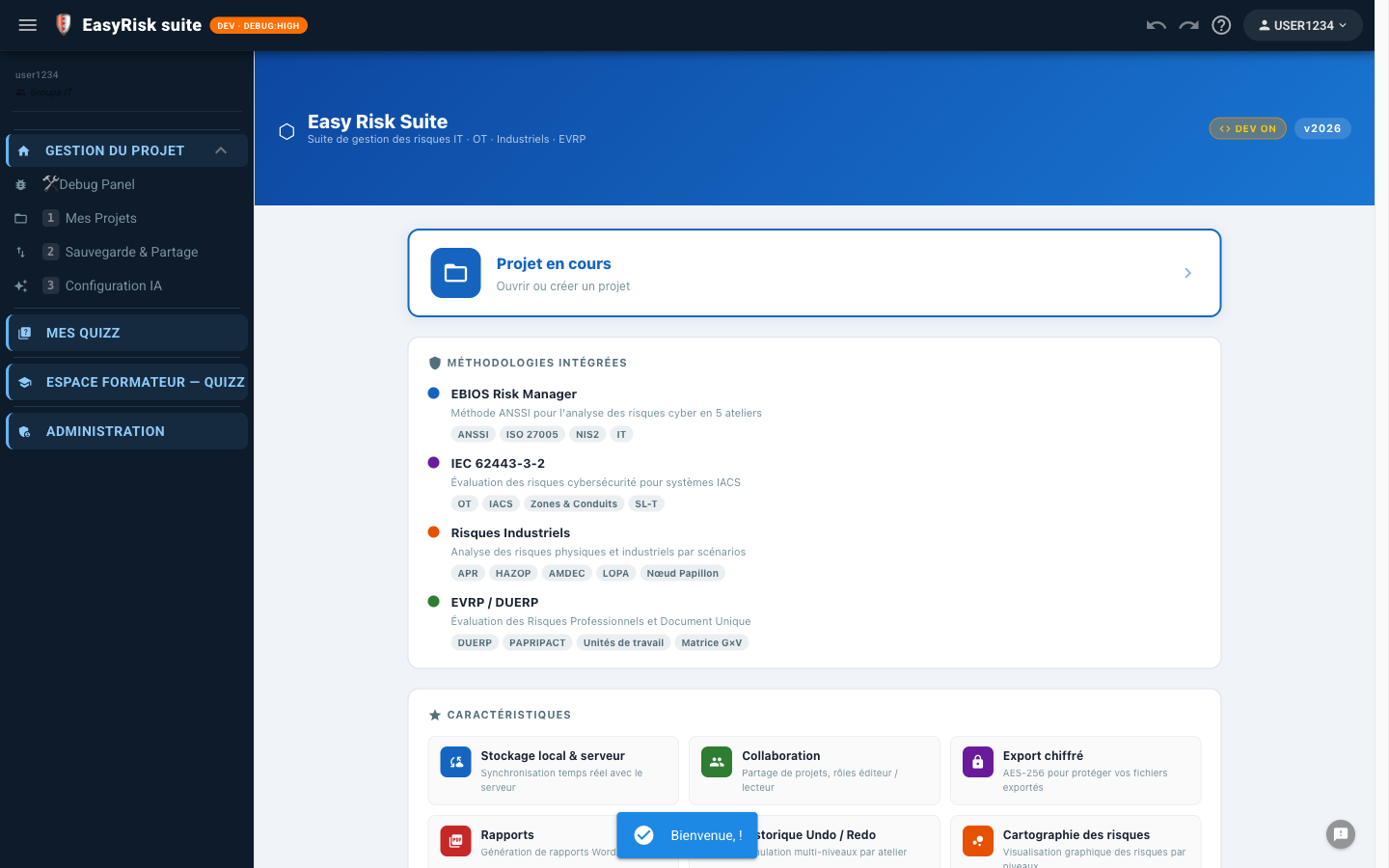
From the home page, click New project. In the dialog, enter a name and choose Industrial Risk.
| Field | Valeur |
|---|---|
| Project name | Ex : H₂SO₄ loading station |
| Type | Industrial Risk (active APR, AMDEC, HAZOP, LOPA, NP, FTA) |
| Storage | Local (browser) or Server (real-time sync) |
Enable AI Mode
Depuis 1-Mes Projets, open the Options for the project and enable AI Mode —this enables AI-generation buttons in the application.
3Configure the AI assistant
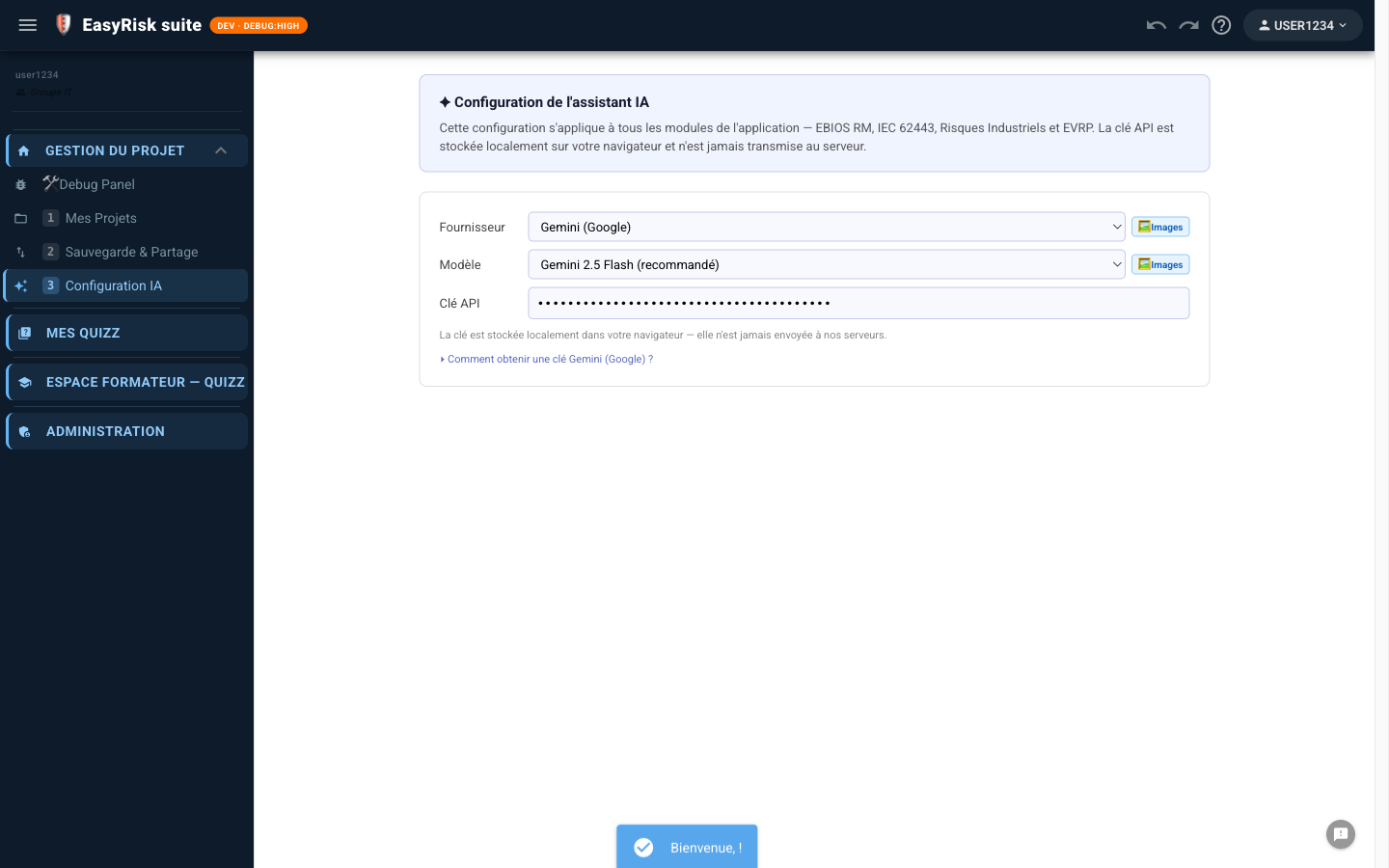
The API key is stored only in your browser —it is never sent to Polyodos servers.
Open configuration
In the side navigation menu, click 3 Configuration IA (under Project Management).
Choose a provider
| Provider | Benefits | Images P&ID |
|---|---|---|
| Gemini (Google) —recommended | Free, generous quota, fast | ✓ Yes |
| Claude (Anthropic) | Excellent raisonnement technique | ✓ Yes |
| Mistral AI | European models, GDPR | Depends on model |
| Groq | Very fast, free quota | Depends on model |
| Ollama (local) | 100% local, no outbound data | Depends on model |
| HuggingFace (experimental) | Wide selection of open models | — |
| OpenRouter (experimental) | Gateway to many third-party models | Depends on model |
| ⚙ Custom (experimental) | Custom URL and model for an internal OpenAI-compatible service | Depends on model |
Each provider offers several models; only some accept images (see the P&ID Images column above).
Get a Gemini key
- Open aistudio.google.com and sign in with your Google account
- Click Get API key → Create API key
- Copy the generated key (it starts with
AIzaSy…) - Paste it into the API key field in Polyodos—saving is automatic
4Open AI Scoping
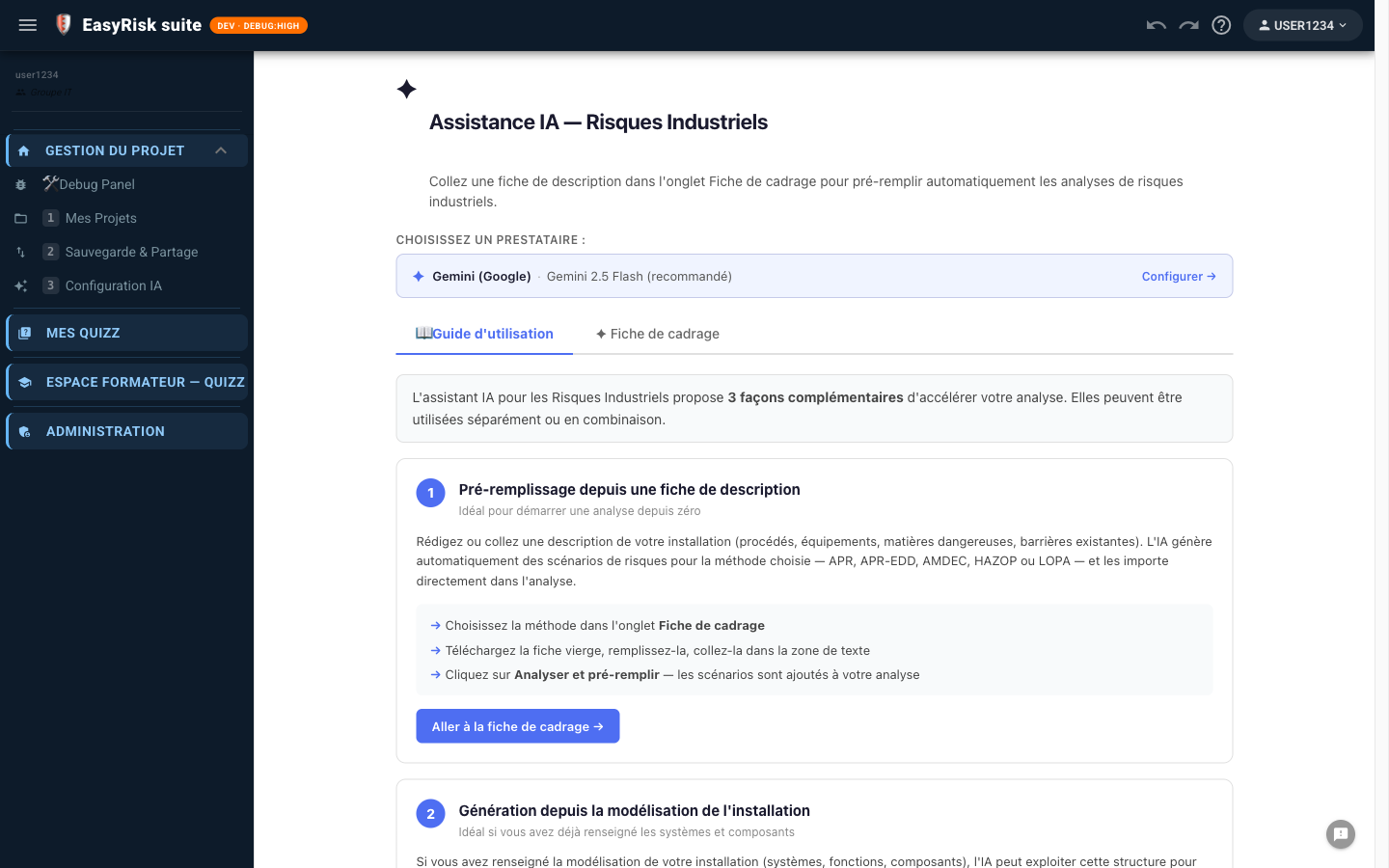
From your open Industrial Risk project, click ✦ AI Scoping in the side menu under Industrial Risk.
The page first displays the User Guide. Click ✦ Scoping worksheet to open the workspace.
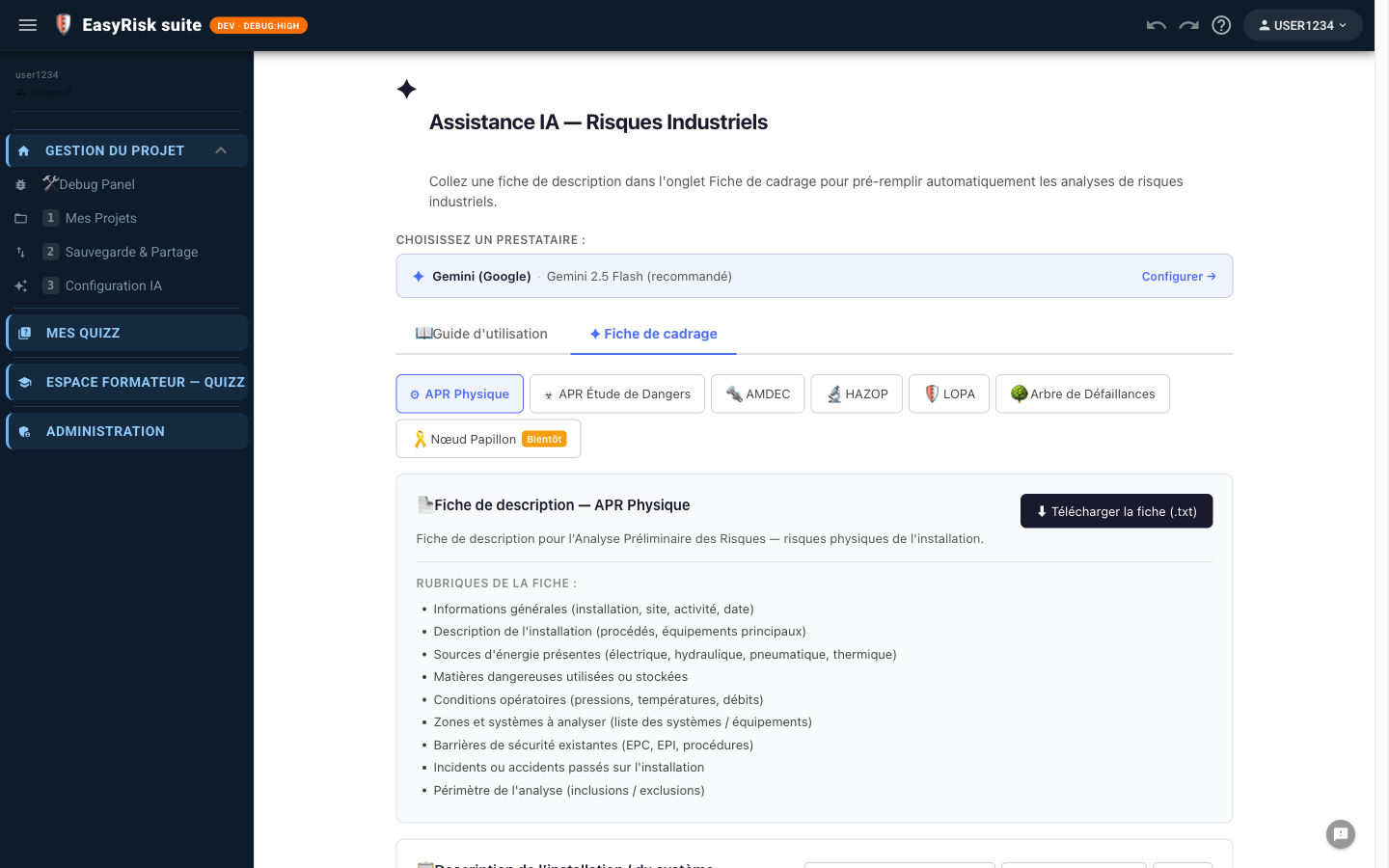
5Complete the description worksheet
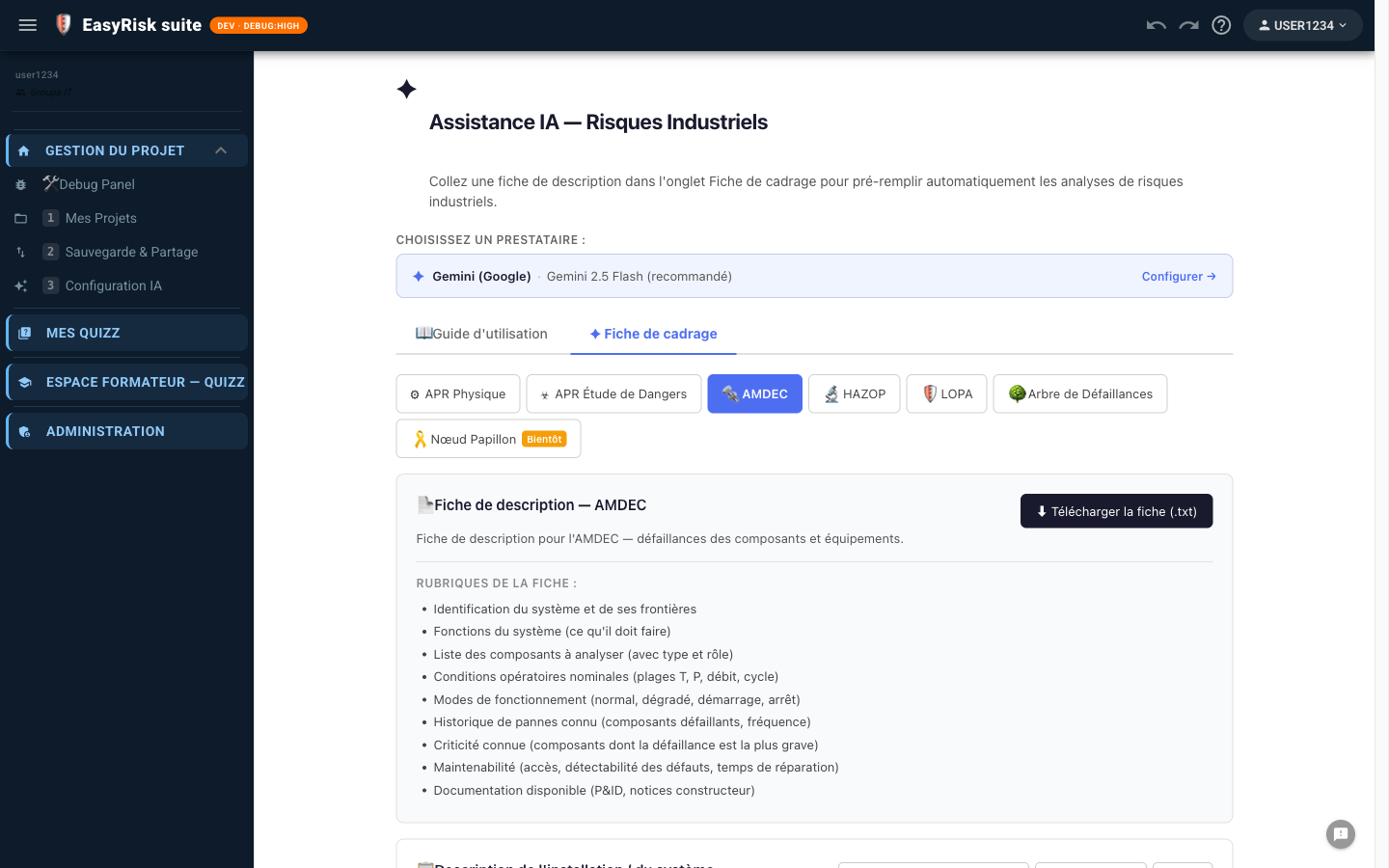
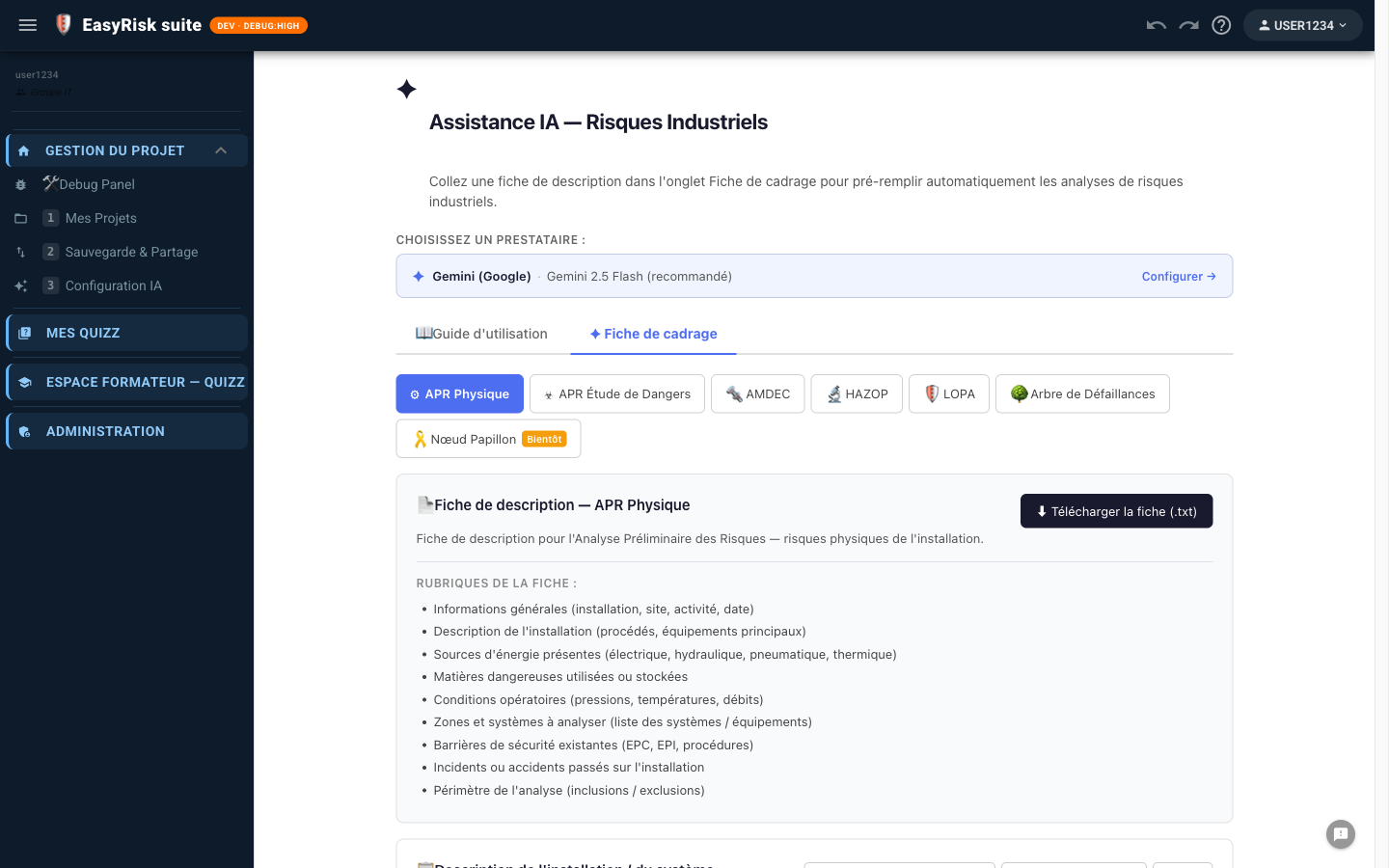
Choose the method
Download the worksheet template
Click ⬇ Download worksheet (.txt) to get a structured template containing the sections expected for the selected method. Complete it, then paste it into the text area.
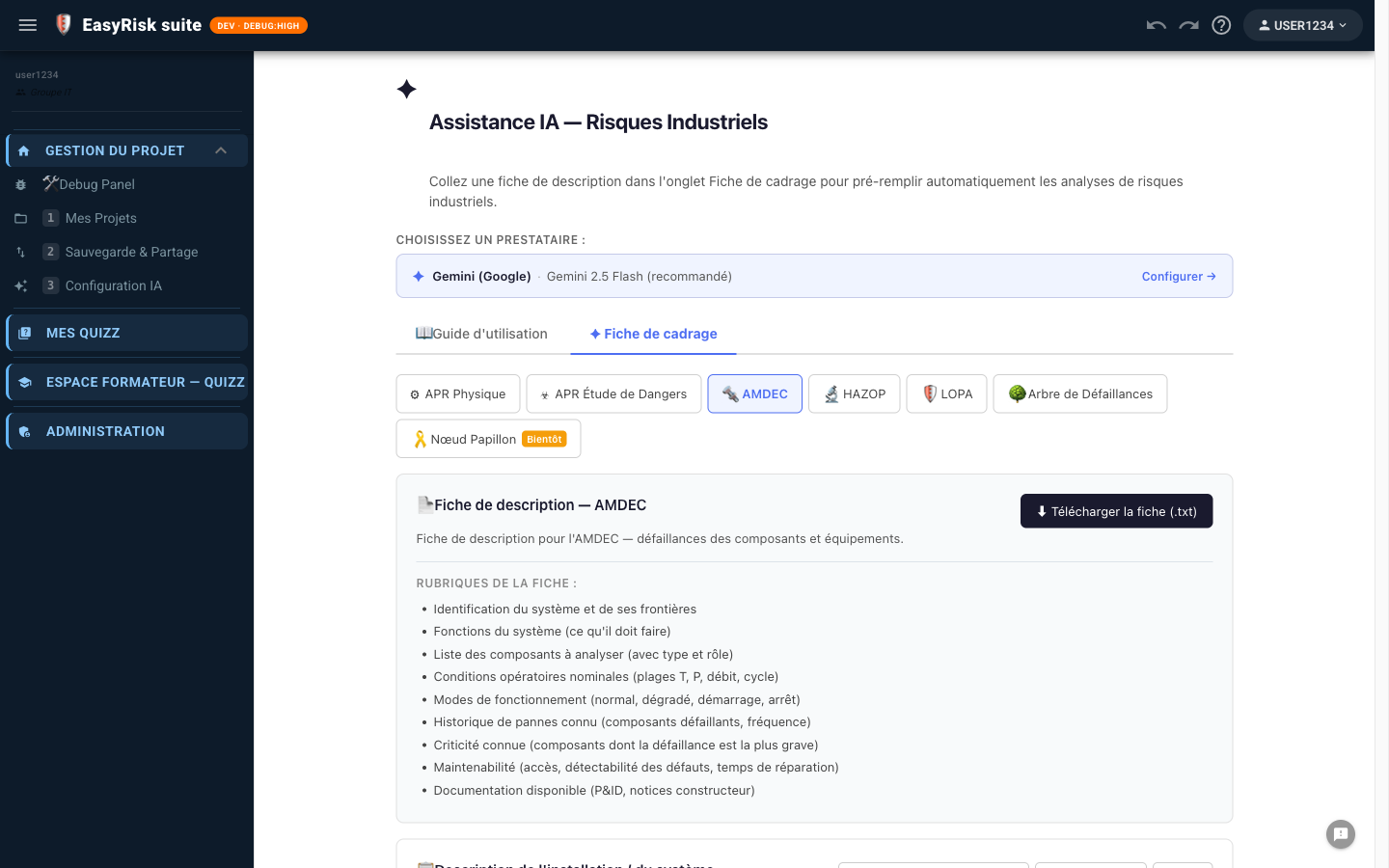
Write the description
The more detailed the description, the better the analysis. Include:
- Facility name and type, substances present, and quantities
- Operating conditions: pressure, temperature, and flow
- Main equipment and functions
- Existing safety barriers (relief valves, detectors, and procedures)
- Incident history or known points of concern
Add P&ID diagrams (optional)
Drag images into the Diagrams or click to select them. The AI analyses them alongside the text. Accepted formats: PNG, JPG, and WebP, up to three images. Available with Gemini, Claude, and other engines whose selected model accepts images (see the table above).
6Lancer l'analyse IA
Once the worksheet is complete and the API key configured, the ✦ Analyse and pre-fill button becomes active at the bottom of the page.
Click it. A confirmation dialog appears before import:
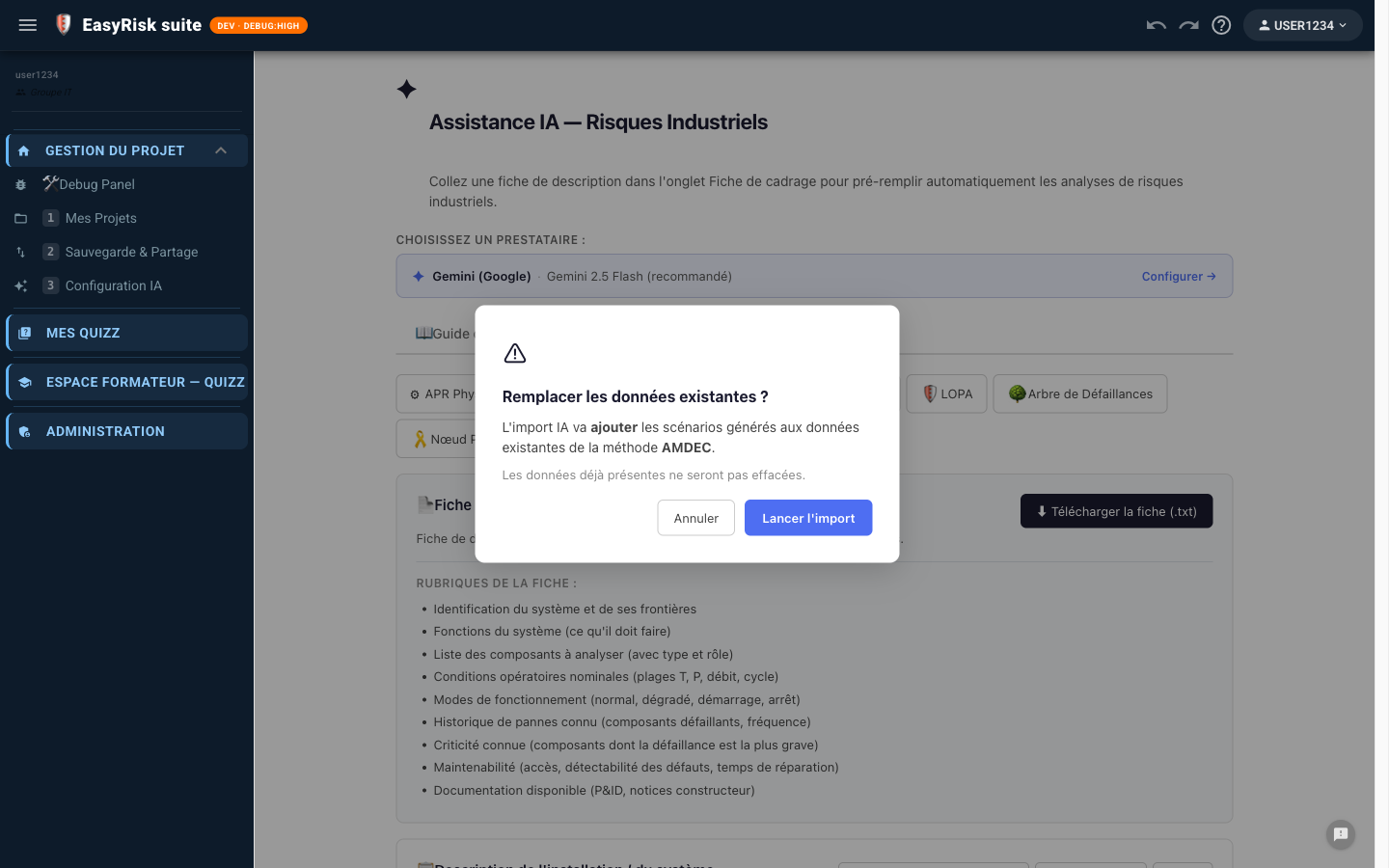
Click Lancer l'import to start generation.
7Results and import
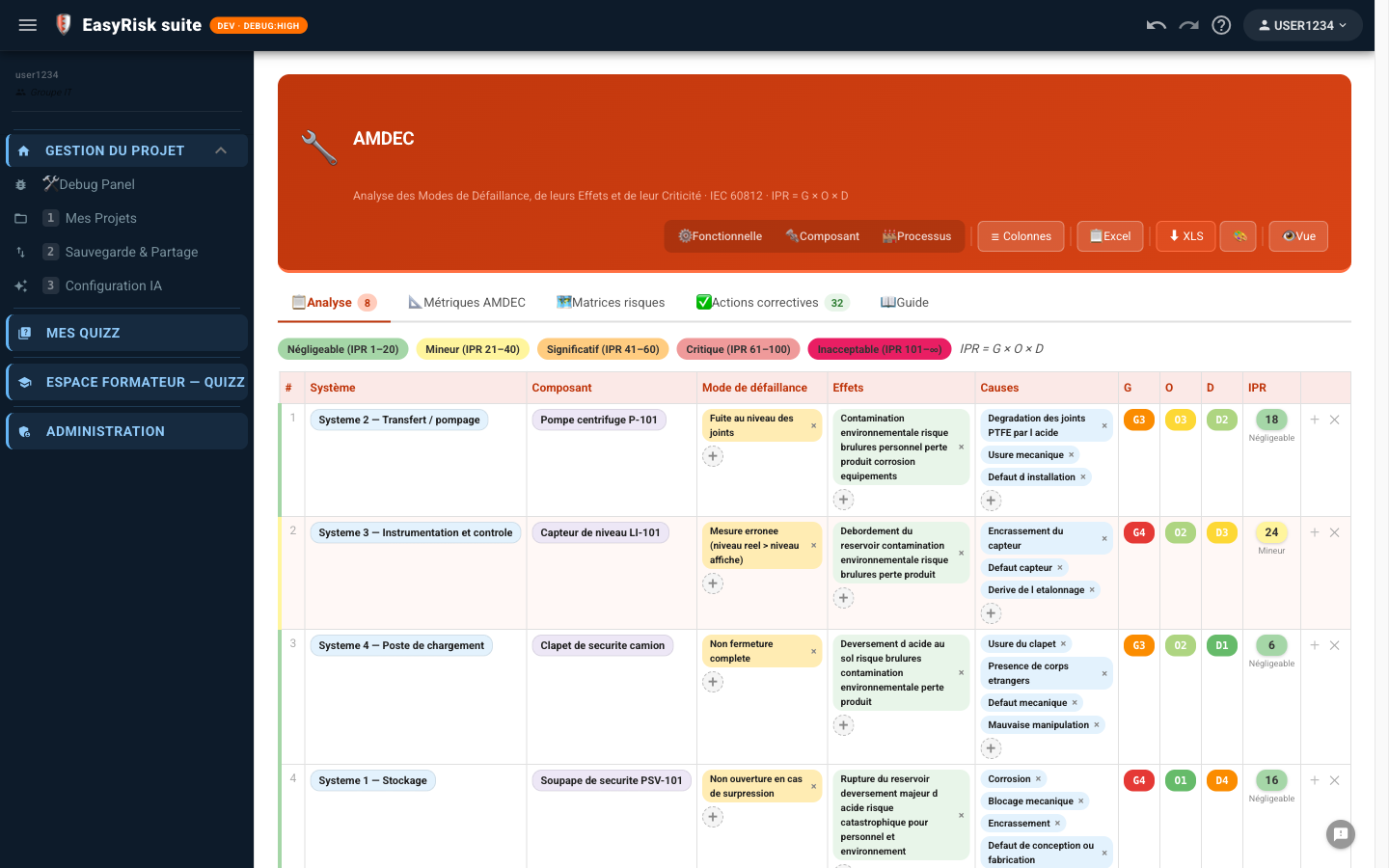
A green card confirms the number of rows created and provides a direct link to the corresponding analysis page.
If an error occurs
A red card displays the error message. Common causes:
| Message | Solution |
|---|---|
| Enter an API key | Open AI Configuration and enter the key |
| high demand / overloaded | Gemini overloaded—try again in 30 seconds |
| API key not valid | Incorrect or expired key—check Google AI Studio |
| No valid JSON | Description too short—add detail to the worksheet |
8Complete the generated analysis
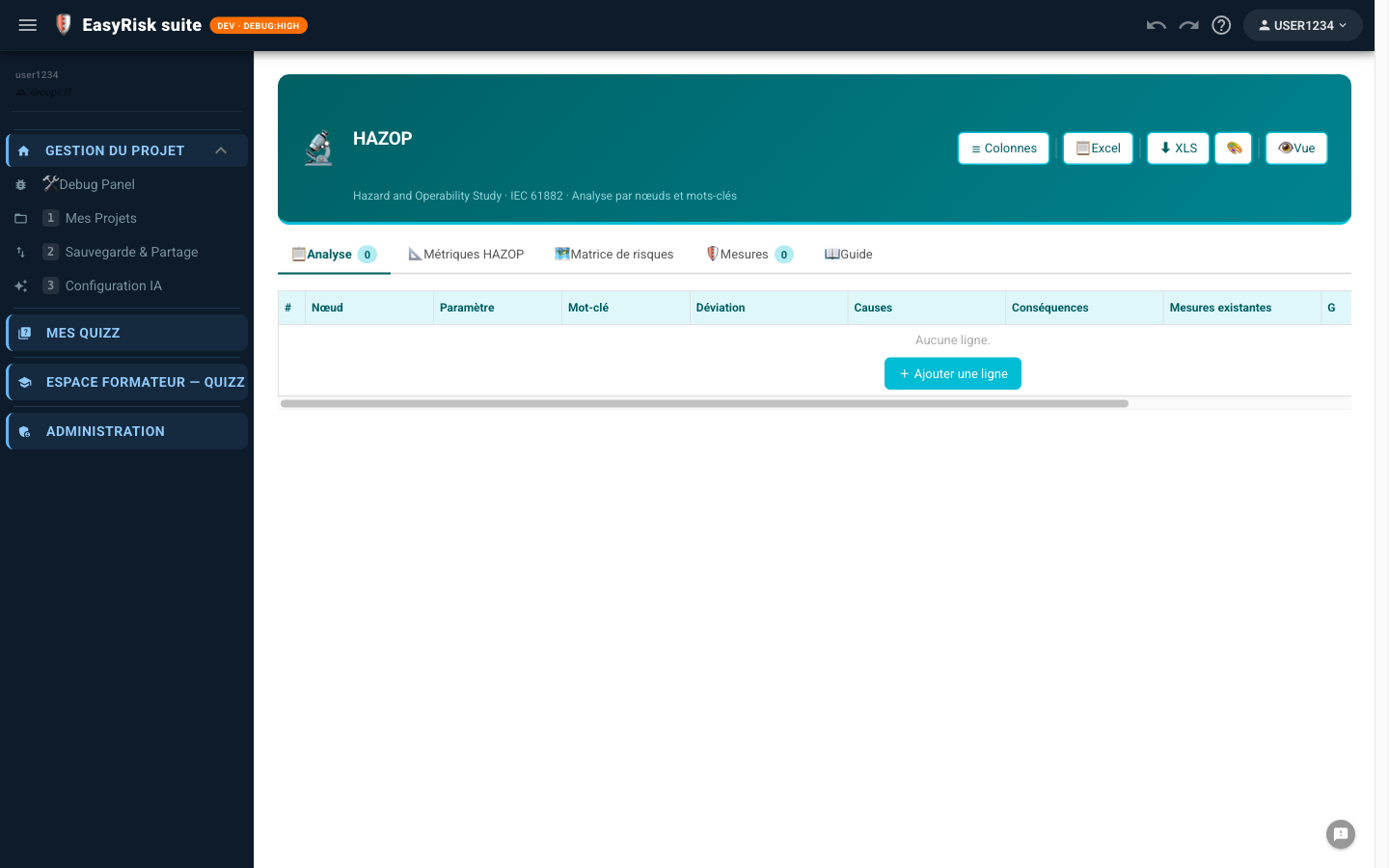
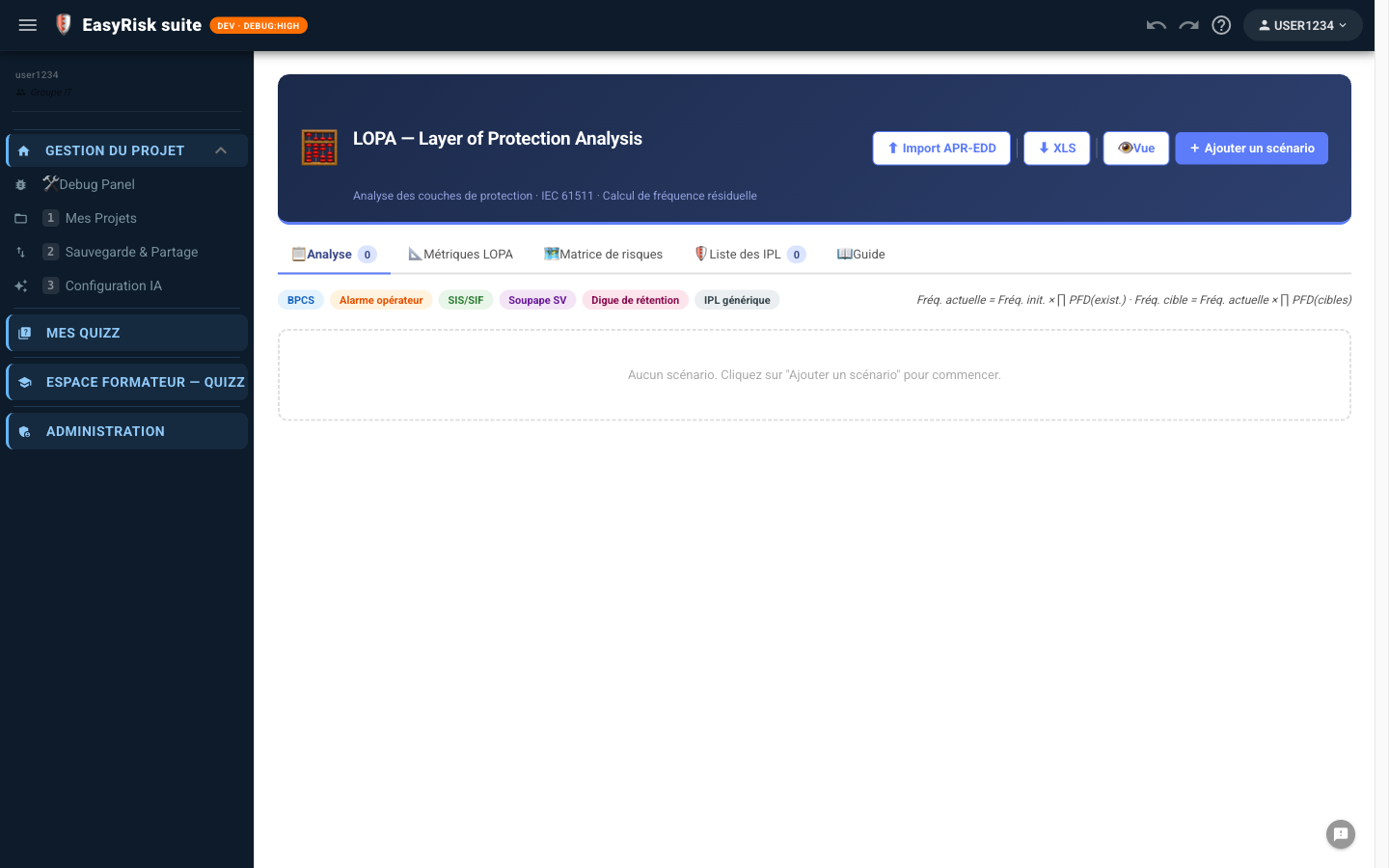
AI-generated data provides starting points for validation and expansion by the project team.
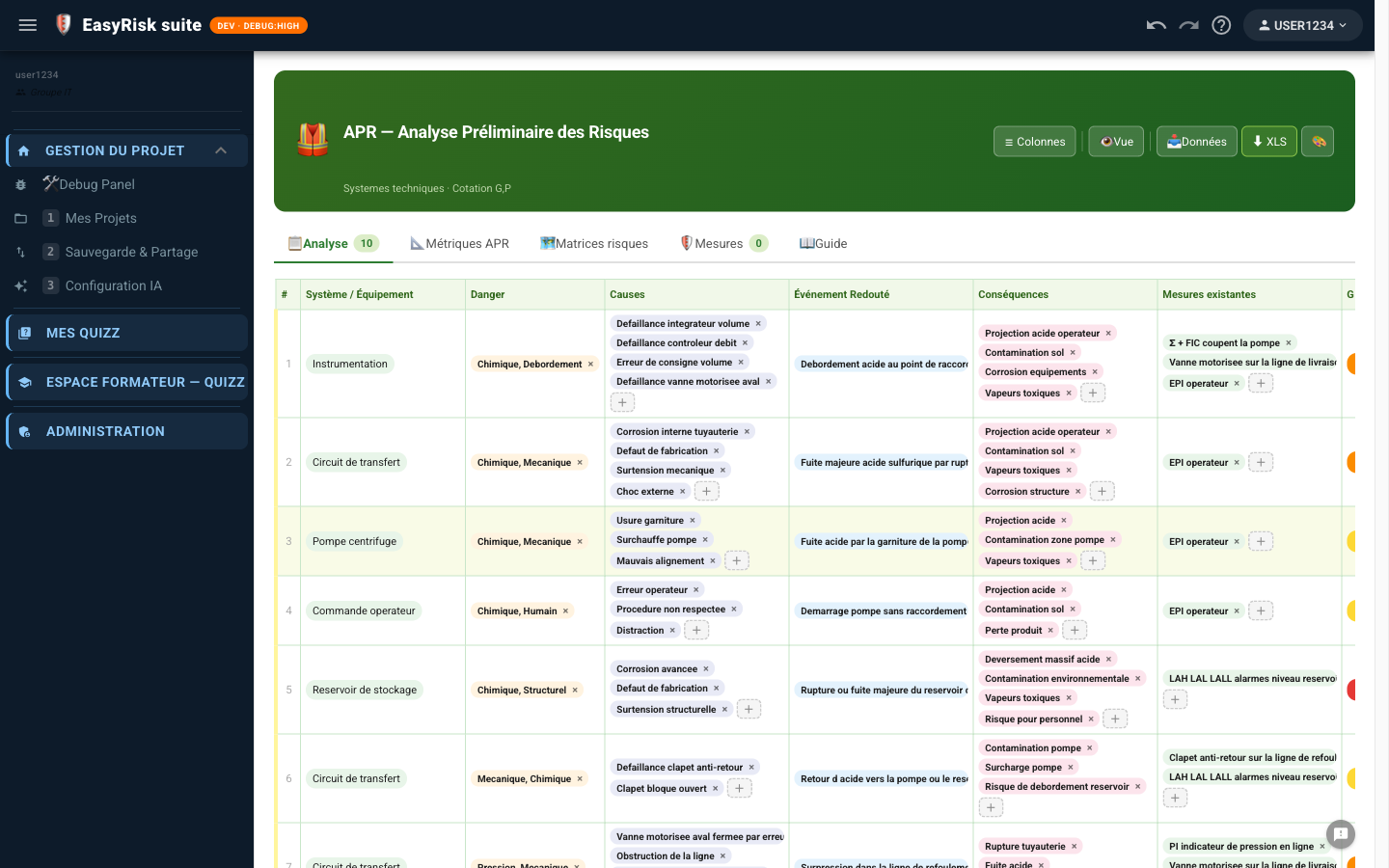
Checks after import
- Check the cotations G/V/IPR —the AI proposes indicative values for team validation
- Complete the causes and consequences using the site's operating experience
- Adapt preventive measures to the actual barriers in place
- Remove generic or irrelevant rows from your context